
The Inventory section helps you track consumable supplies like detergent, softener, bags, and hangers. Record entries (purchases) and exits (consumption) manually, set minimum thresholds to receive low-stock alerts, and optionally link items to expenses so they feed into your Finance report automatically.

What is the Inventory for
The Inventory is independent from the service catalog. Services (what you sell) live in the Products section. Supplies (what you consume internally) live here. Use Inventory to know when to buy more detergent, how much softener you have left, or how many bags you used this month.
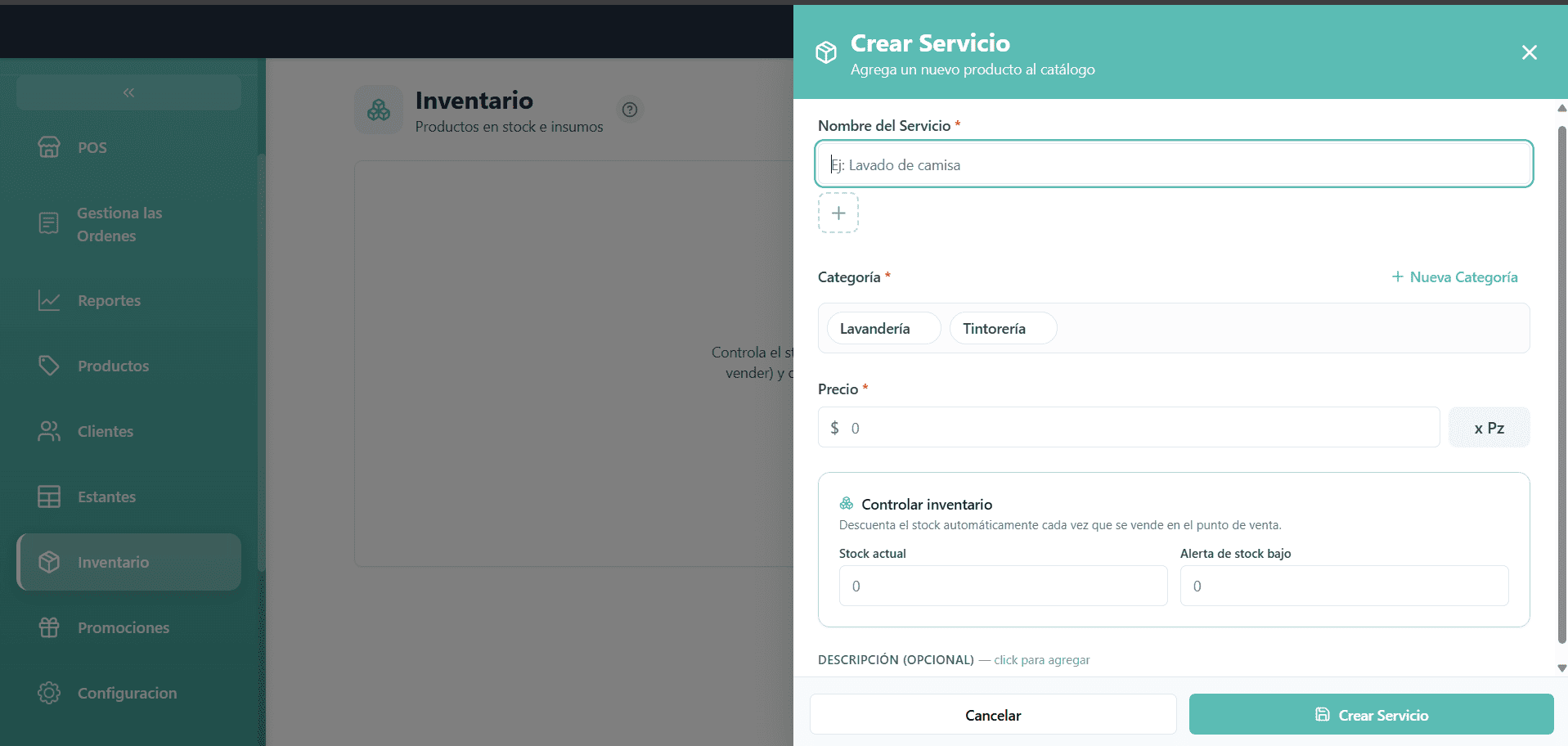
Creating your first supply
Click "New supply" in the upper-right corner.
Name the supply (e.g., "Roma Detergent"). Pick a unit that matches how you buy and use it (liters, kg, pieces, ml, or units).
Set a minimum stock threshold. When current stock falls to or below this number, the item shows a red "Low stock" badge on the list.
(Optional) Enter the initial stock you have on hand. This records an entry movement in the audit log right away.
(Optional) Enter a unit cost. If you do, every entry you record will also create an expense in the "Supplies" category automatically — so your Finance report stays accurate without extra work.
Recording movements
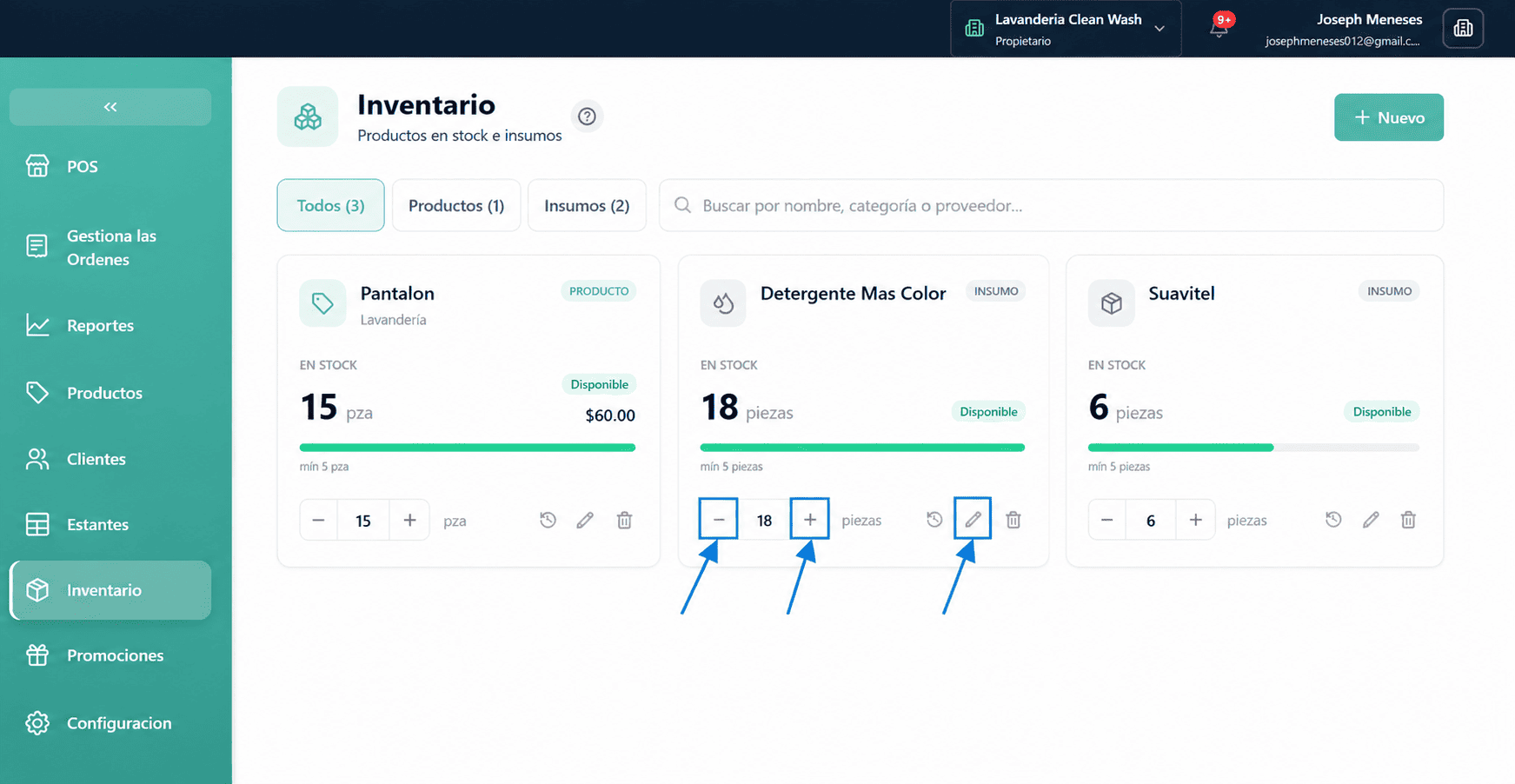
Every change in stock is recorded as a movement. There are three types:
• Entry — you bought more (stock goes up). If unit cost is set, an expense is also created. • Exit — you used some (stock goes down). • Adjustment — sets the stock to an exact value (use this after a physical count).
Low-stock alerts
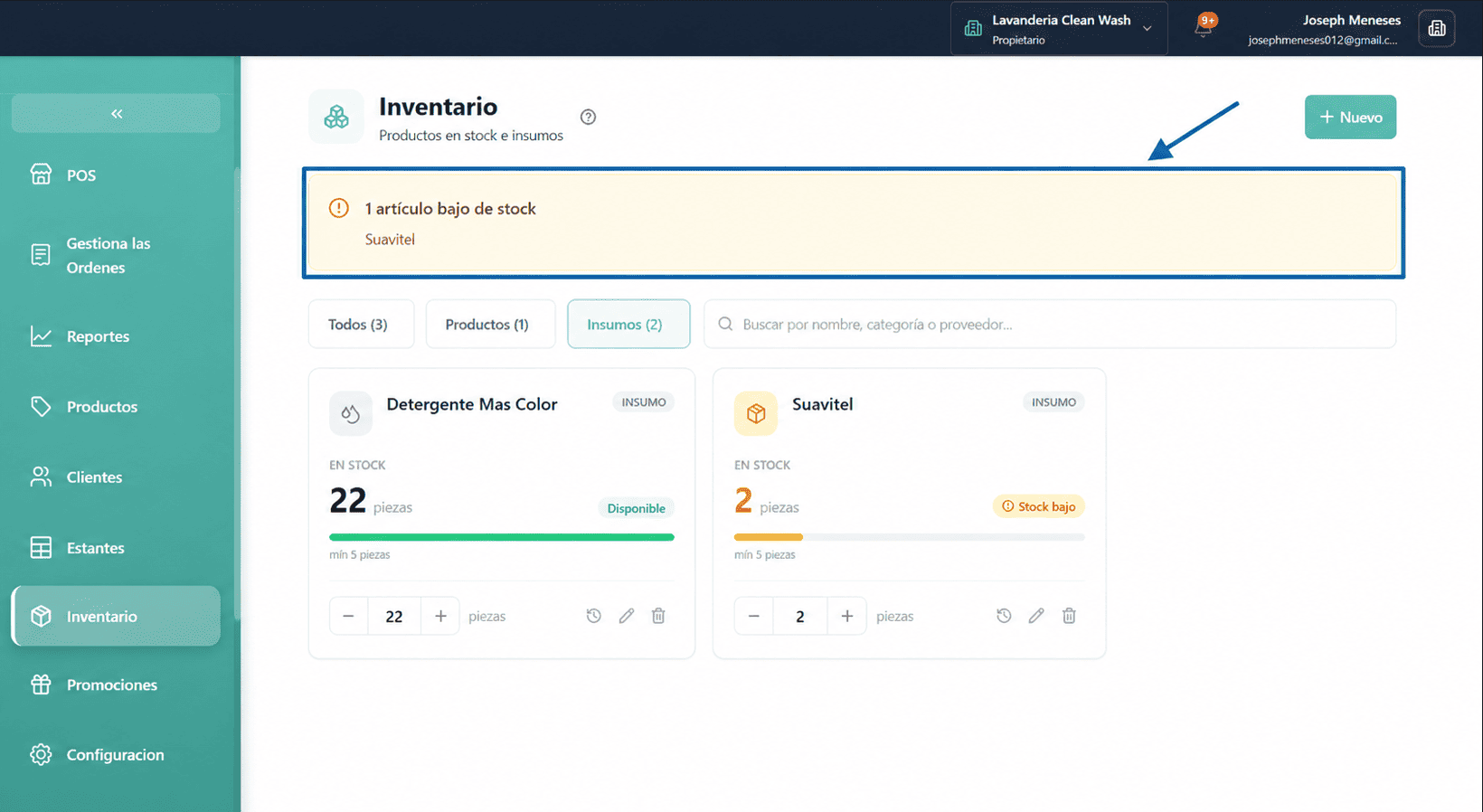
When the current stock of any item is at or below its minimum threshold, a red banner appears at the top of the Inventory page listing the affected items. Each card also shows a "Low stock" badge.
Movement history
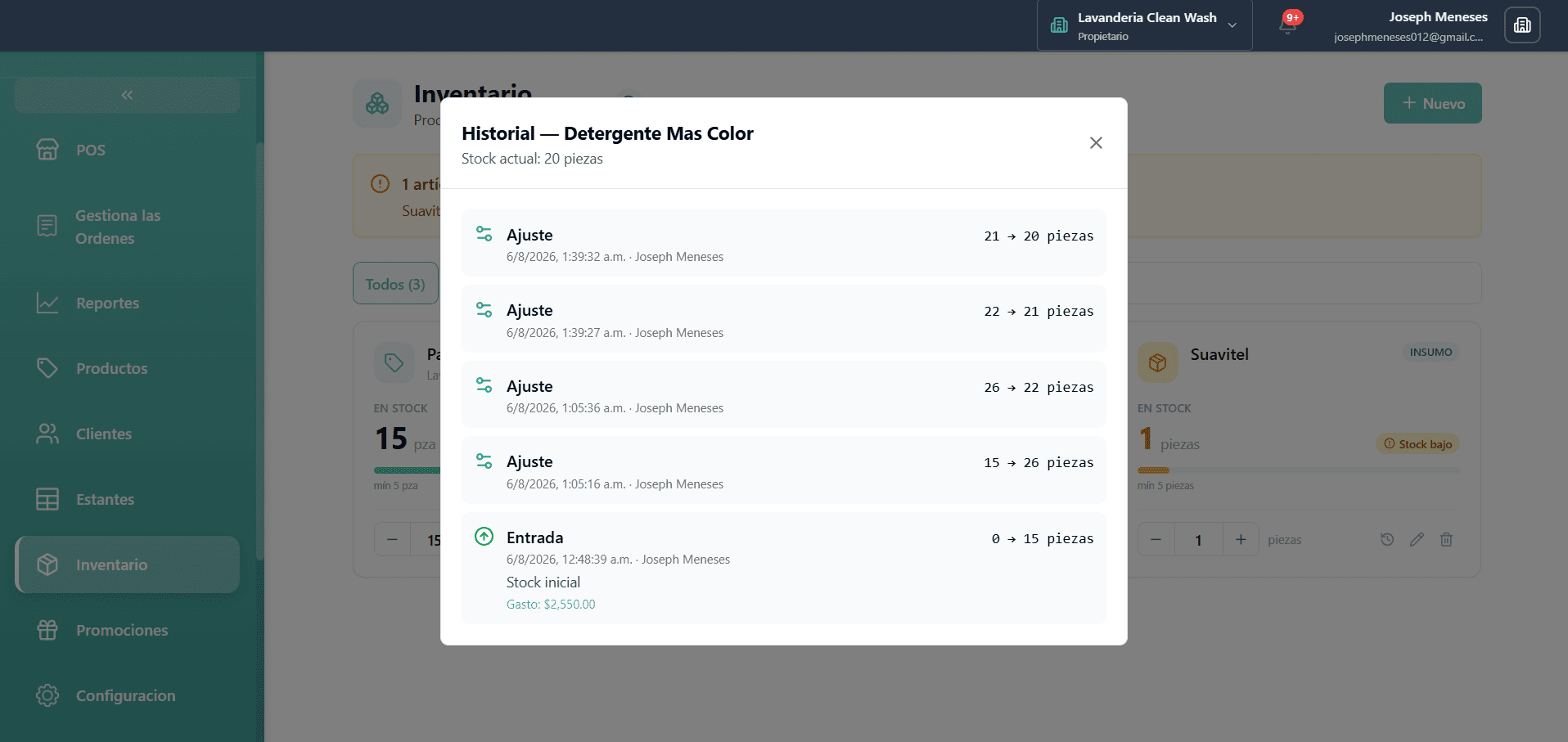
Click the history icon on any item to see every movement: type, amount, before/after stock, who recorded it, the note, and the expense generated (if any). Use this as your audit trail.
Frequently asked questions
Can I delete a supply? Yes. Deleting is a soft delete — the history is preserved but the item disappears from the list.
What if I forgot to record an entry on time? Record it now with a note explaining when it happened. The movement timestamp will reflect when you recorded it, but the note keeps the audit trail honest.
Why does an Entry create an expense? Only when you set a unit cost. The expense is automatically categorized as "Supplies" and appears in your Finance report (Reports → Finance).