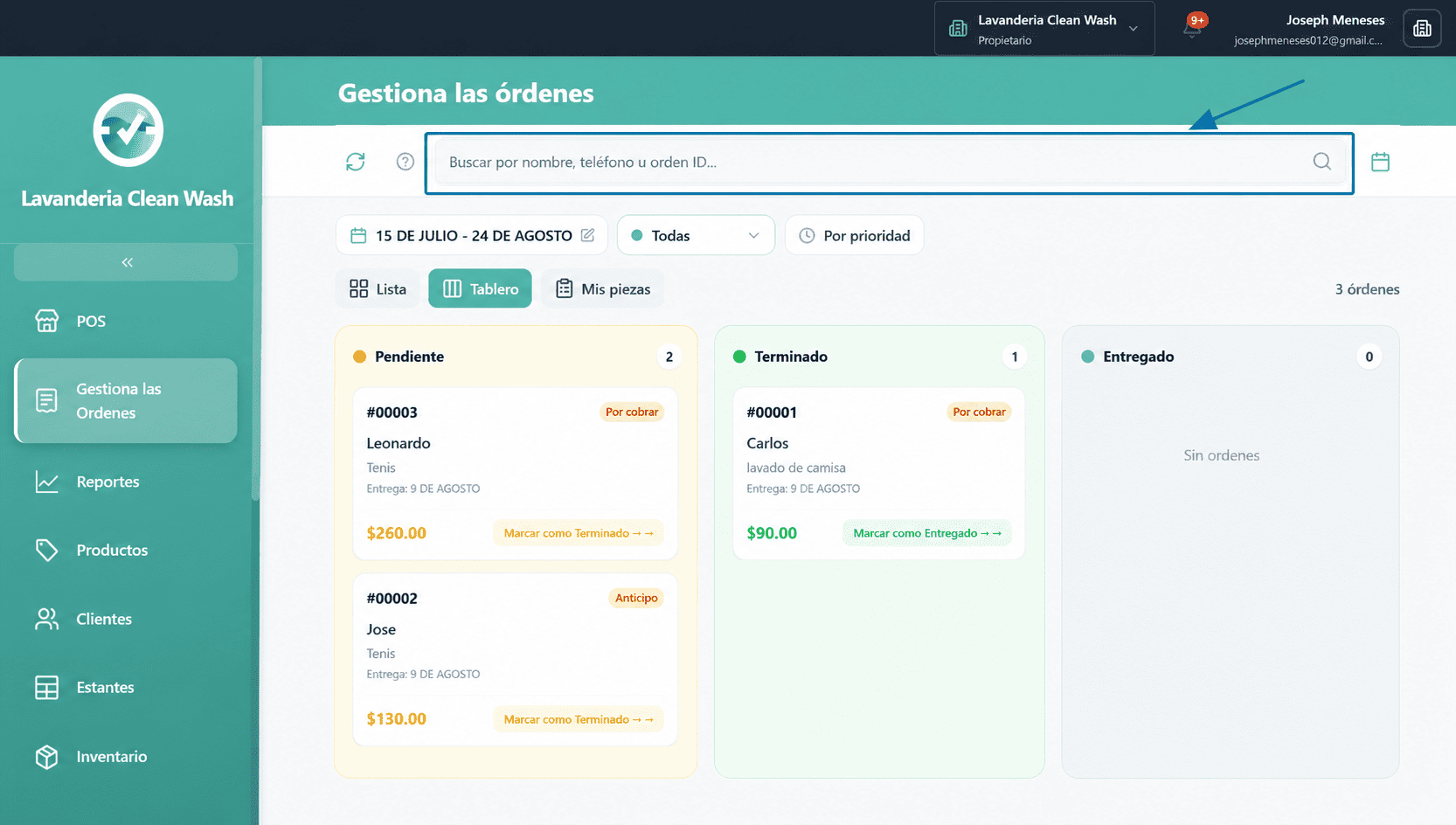
The Orders screen is where you track every order from the moment it is created until delivery. You can switch between a board view (kanban) and a list view, filter by status, search by customer name, and manage payments.
Board view vs. List view
At the top of the screen you will find two view buttons: Board (kanban columns) and List (card grid). Your last choice is remembered between sessions.
Board view (Kanban)
Orders are grouped into three columns — Pendiente, Terminado, and Entregado — reflecting the physical flow of laundry through your shop. Each column shows the orders that are currently in that stage.
At the bottom of each order card there is a shortcut button to advance the order to the next stage without opening the detail screen. Clicking "Mark as Completed →" on a Pending order moves it to Terminado. Clicking "Mark as Delivered →" on a Terminado order opens the payment form (if payment is still pending).
List view
Shows all filtered orders as cards in a responsive grid (2 columns on desktop, 1 on mobile). Useful when you want to scan a long list quickly or search for a specific customer.
Filtering by status
The ESTADO picker at the top lets you filter the orders list to a single status. The available options are:
All — shows every active order regardless of status.
Pendiente — orders that have been created but not yet washed/processed.
Terminado — orders that are ready for pickup.
Entregado — orders that have been handed back to the customer.
En estante — orders that are stored on a shelf (estante). A count badge shows how many orders are currently in storage. Useful to quickly see which orders have been sitting for a long time.
Domicilio — orders marked for home delivery.
Eliminadas *(admin only)* — shows orders that have been soft-deleted. See the "Deleted orders" section below.
When is payment collected?
Payment can be captured at two points:
At order creation (POS): you can collect full payment or an advance (anticipo) when the customer drops off their laundry. If you do, the order is marked as Pagado from the start and no payment form appears at delivery.
At delivery (Entregado): when you advance an order to Entregado and it has not been paid yet (status Por cobrar), the system opens a payment form where you enter the amount received and the payment method (cash, card, or transfer). Once confirmed, the order is marked as Pagado and the income report is updated.
Deleted orders (Eliminadas)
Deleting an order does not permanently remove it from the database. Instead, it is soft-deleted: it disappears from all active views and is excluded from income reports and statistics, but it remains in the system for auditing purposes.
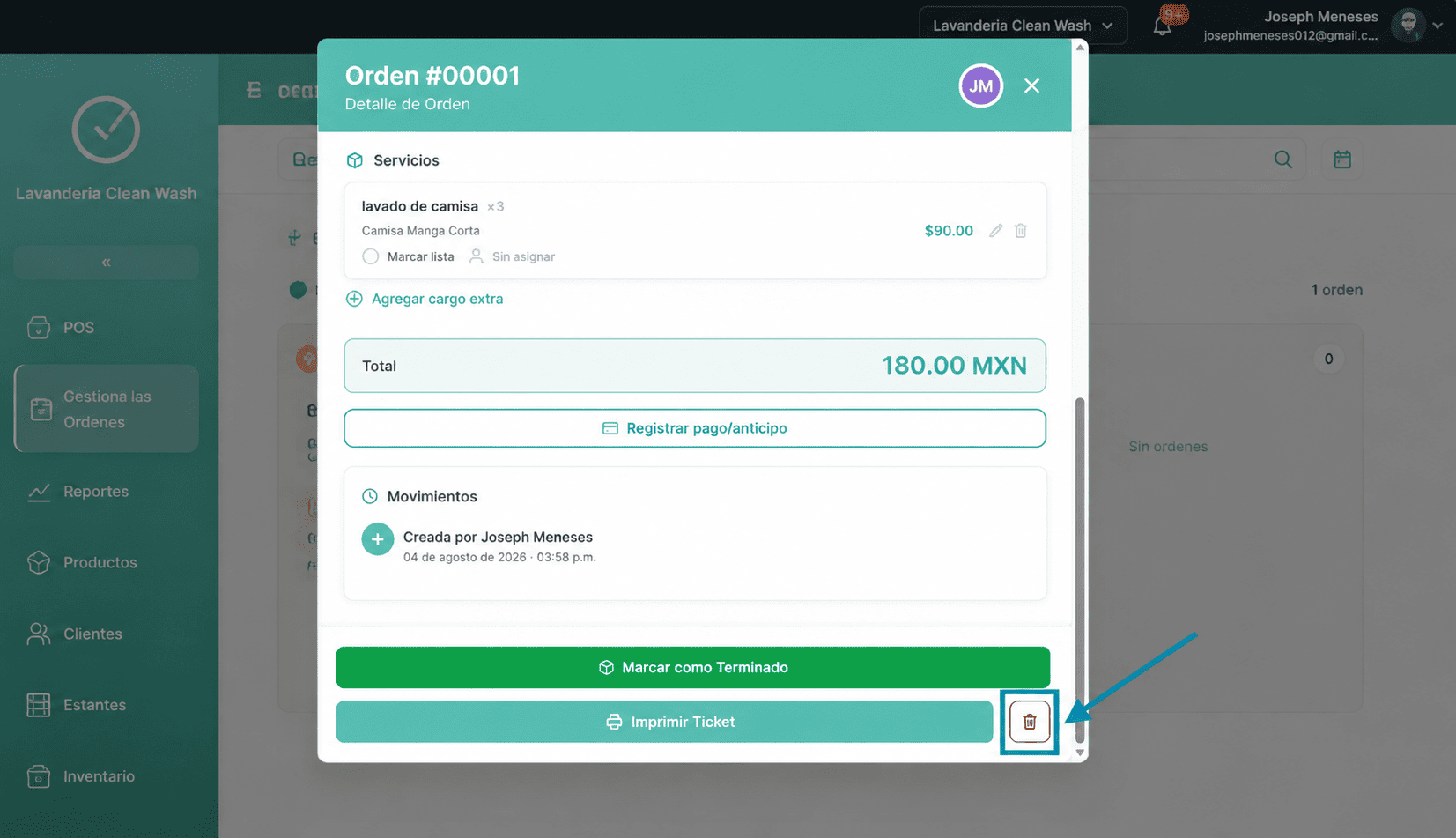
To delete an order, open its detail panel and tap the Delete button (admin role required). A prompt will appear asking for a deletion note — this is optional but recommended so there is a record of why the order was removed.
To view deleted orders, select Eliminadas from the ESTADO filter. The list shows each deleted order with the date it was deleted, who deleted it, and the deletion note.
Searching for an order
The search bar filters orders in real time by customer name or order ID (e.g. #00042 or LV-XXXXX). The search works on top of any active status filter, so you can narrow down to Pendiente orders from a specific customer.