
Variants let you offer a single service (e.g., "Comforter wash") in different sizes (Small, Medium, Large) at different prices — instead of creating one product per size. Cleaner catalog, same flexibility at the POS.
When to use variants
Use variants when the same service has different prices depending on a property of the item (size, color, fabric). For example: washing a comforter costs $80 for a twin, $120 for a queen, $160 for a king — same service "Comforter wash", three prices.
Step 1 — Create a variant type
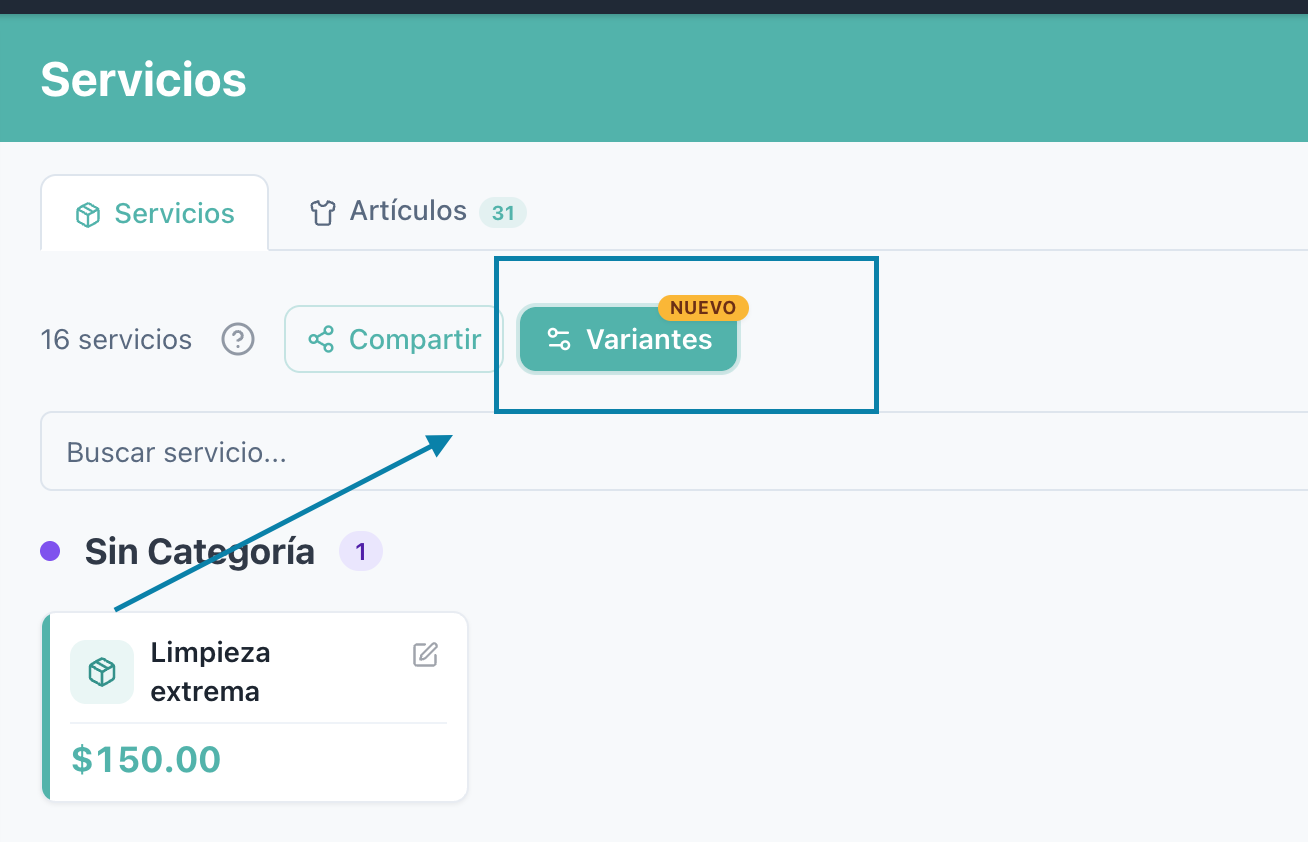
In Products, click the Variants button at the top of the toolbar (the one with the NEW badge).
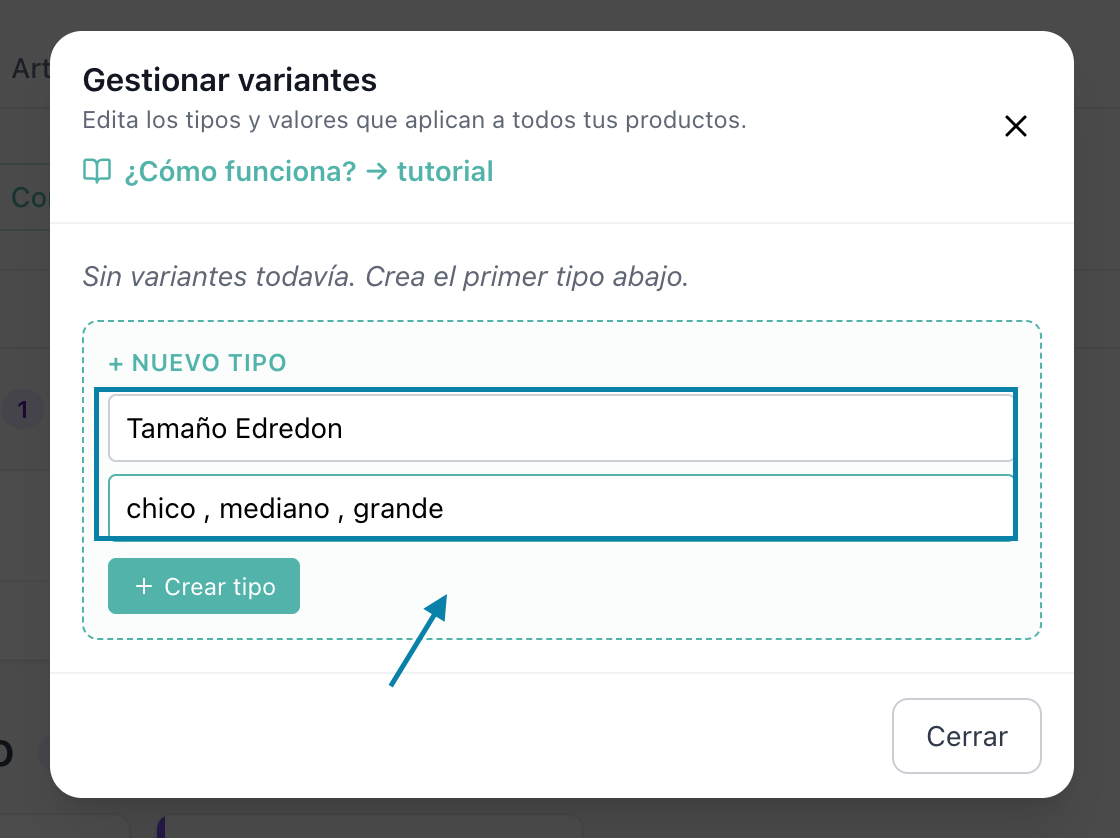
In the + New Type card, type a name (e.g., "Size") and the values separated by commas (e.g., "small, medium, large"). Click Create type.
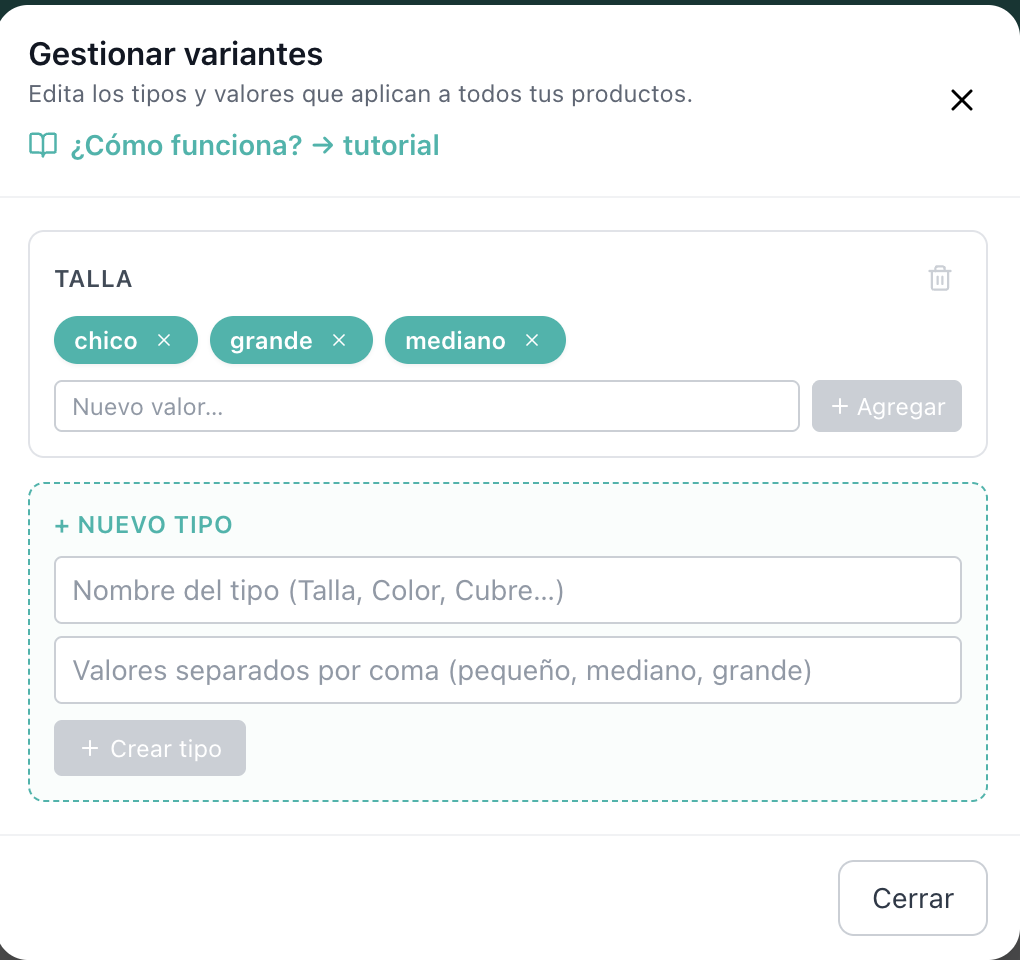
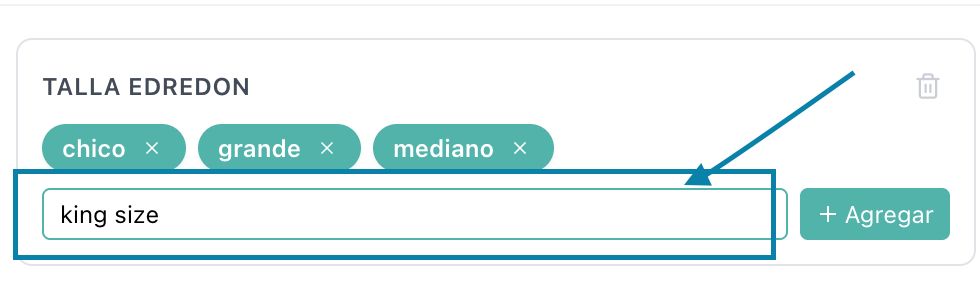
The type appears at the top of the modal as a card with its values rendered as vibrant teal pills. You can add more values from the same card later, or remove individual ones with the × button.
Step 2 — Enable the variant on a product
Open any product (click its card to edit).
Find the "Enable variant (Size, Type...)" checkbox and turn it on. A section appears below.
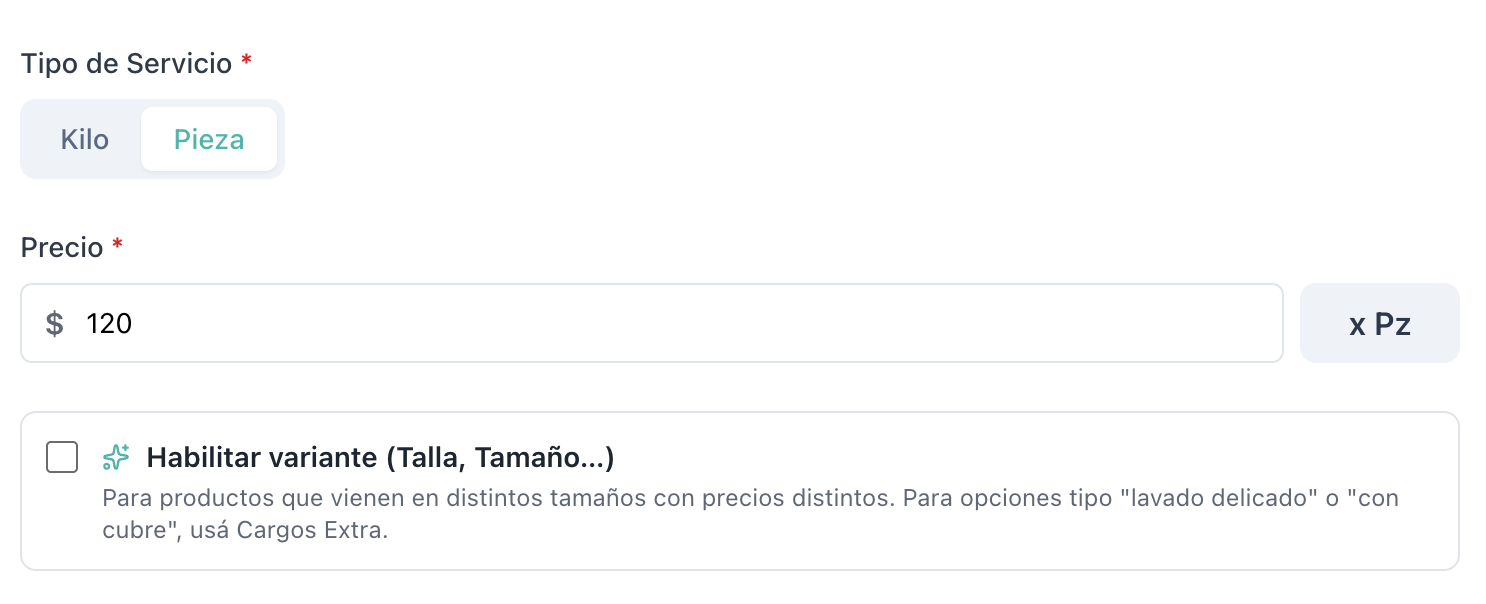
Step 3 — Pick the type and set the price per variant
Click the chip with the type you want (e.g., "Size"). It highlights to mark the selection and the price table appears below with one row per value.
Type a price in each row. Values left empty fall back to the product's base price. Set only the ones that differ.
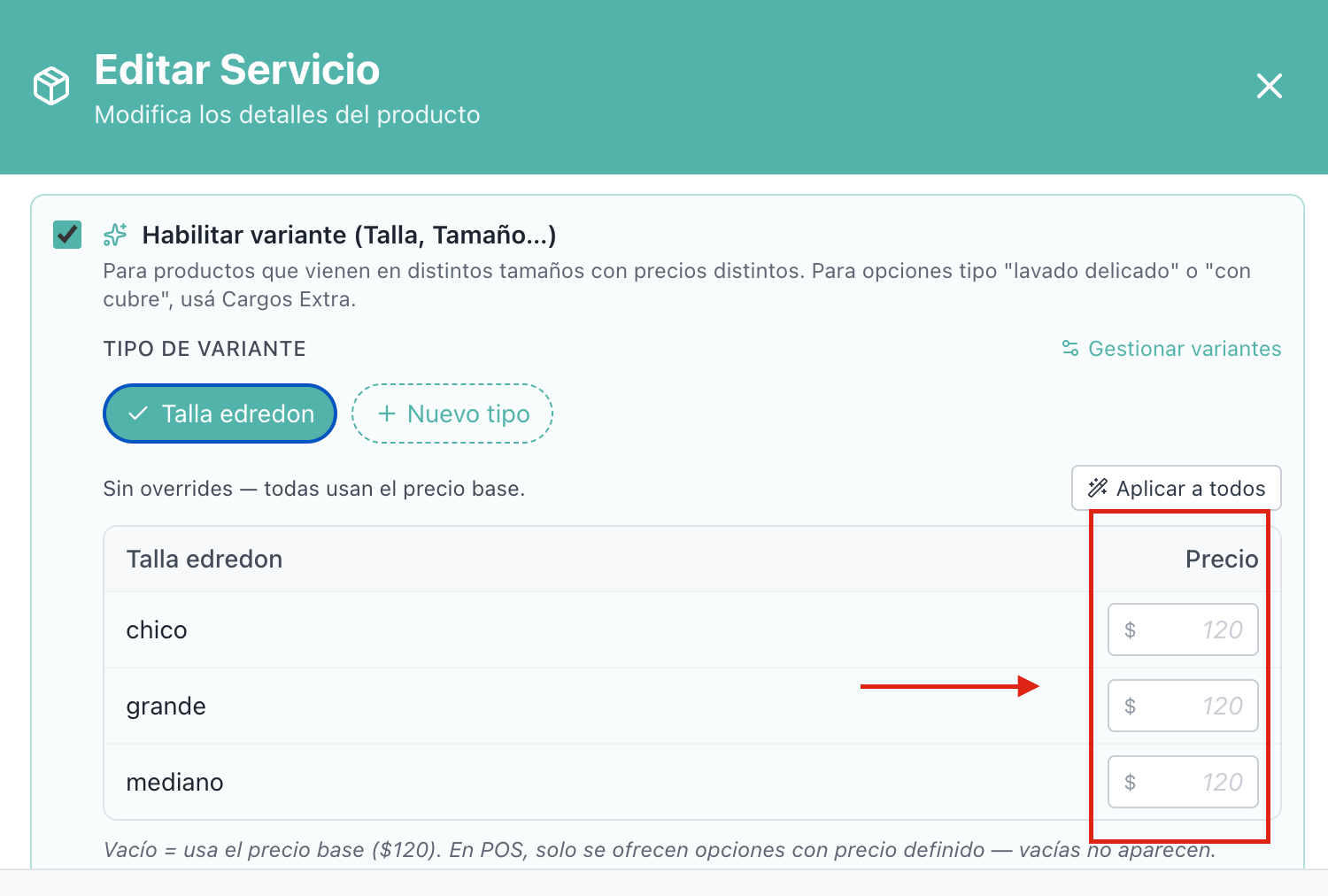
Type the price in each row.
Click Update Service at the bottom. Done.
How it looks at the POS
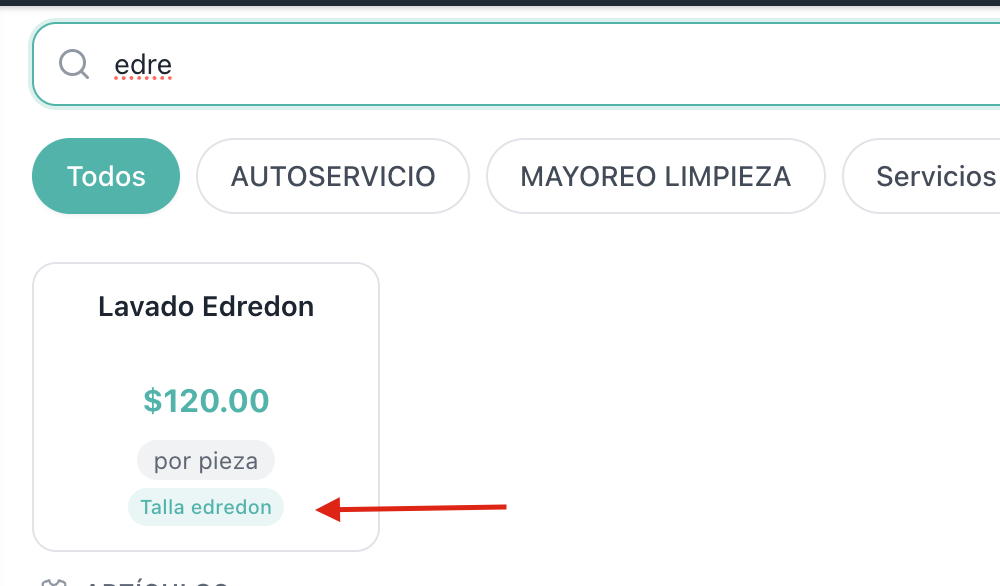
When the product has variants, the POS card shows a small badge with the type name (e.g., "Size").
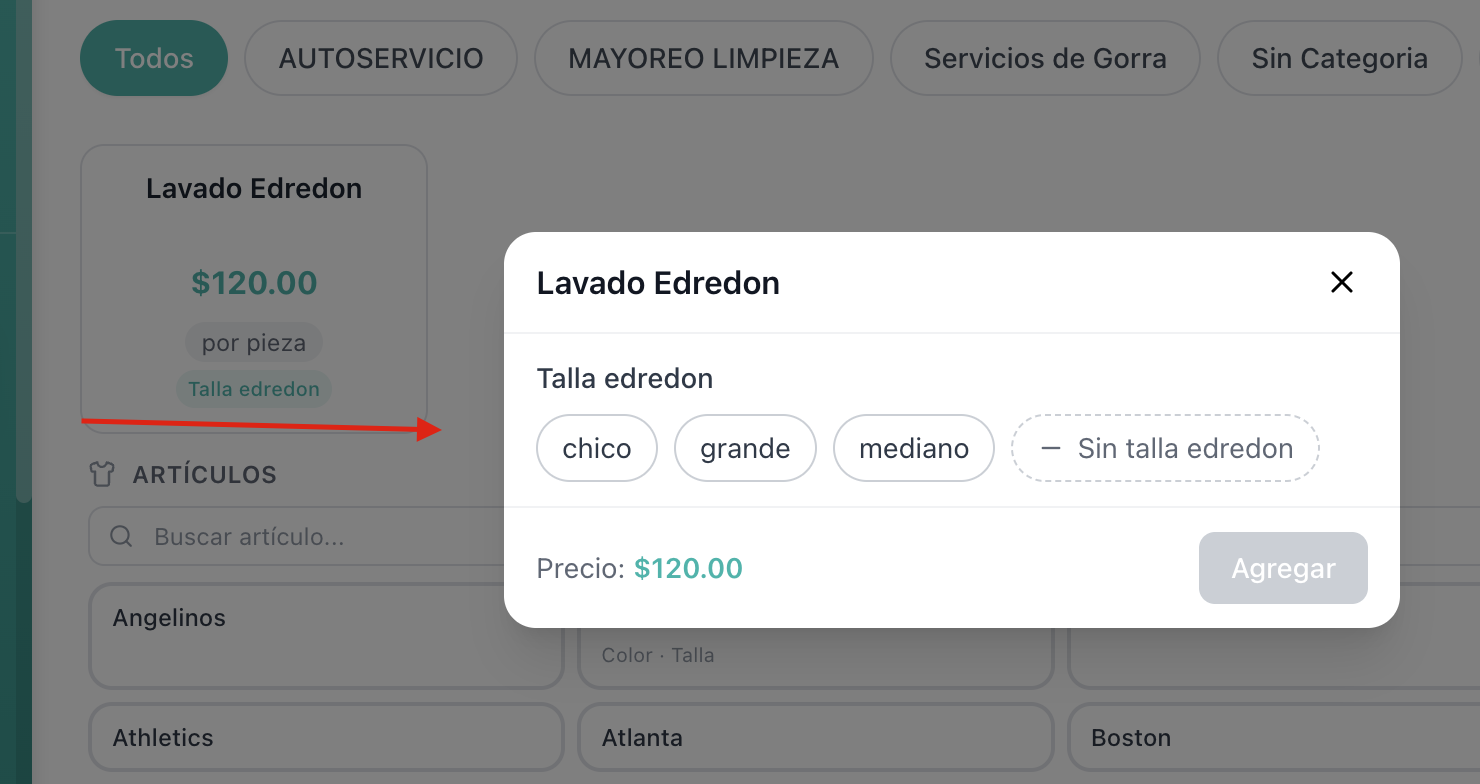
Tapping the card opens a picker with all the available values — each one shows its real price live. The cashier picks the size, sees the price, and clicks Add.
Adding the same product with a different variant creates a separate line in the cart. The same variant tapped twice increments the quantity.
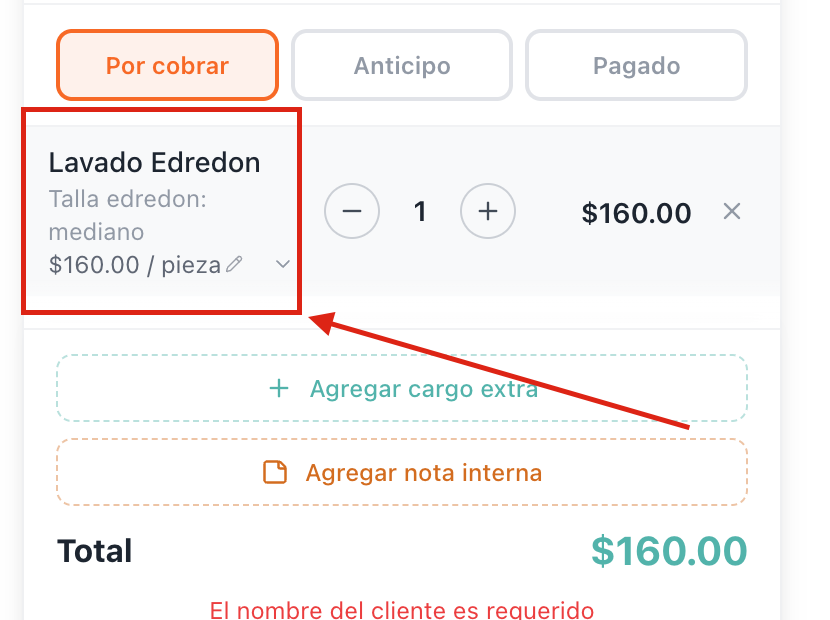
How it looks in the order detail
When you open an order from the Orders or Reports list, every line shows its variant below the service name. Prices are frozen at the moment of sale — even if you change variant prices later, history stays intact.
Setup ideas for your business
Here are some real configurations our customers use. Copy the one that fits your business or use them as inspiration:
Remember: if the attribute doesn't change the price (like Color for most businesses), use "Identifies only" mode. The variant appears on the ticket as a label without affecting the total.
Frequently asked questions
Can I have more than one variant per product (e.g., Size AND Color)? Yes! See the Advanced Variants guide for 2D pricing matrices, Color as an identifier, and more.
What happens to past orders if I delete a variant? Nothing. Past orders keep the variant name and the frozen price — the snapshot is stored inside the order line.
Can I migrate from "one product per size" to variants? Yes. Delete the legacy products (soft delete — history is safe) and create a single product with the variants assigned. Reports and finance stay 100% intact because line items store a denormalized snapshot.
What if I delete all values of a type? Products that used it stop offering the variant in the POS automatically — no errors, just falls back to the base price. Historic orders keep the saved variant.