
Quick notes are one-tap chips that add a common note to an order — like "Stained clothes", "A hole", "Faded" or "Missing button". You define your own list once, and from then on you add notes with a single tap instead of typing them on every sale.
Activate and configure your notes
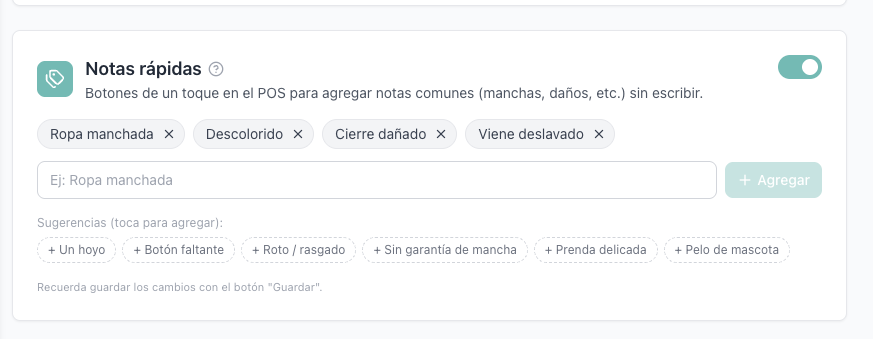
Go to Configuración del Negocio → Notas rápidas and turn the switch on.
Add the notes you use most. Type one and tap Agregar, or tap any of the suggestions (Ropa manchada, Un hoyo, Descolorido, Botón faltante…).
Remove any note with the ✕ on its chip. When you are done, save with the Guardar button.
Add a note to the whole order
In the POS, tap Observaciones in the order panel on the right.
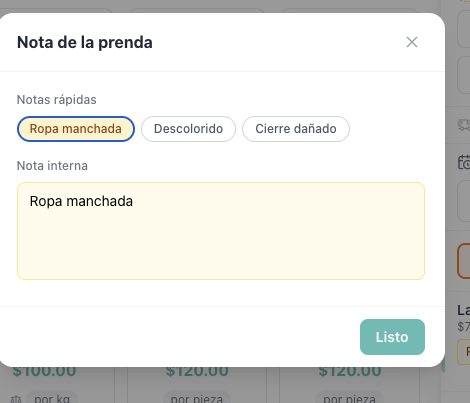
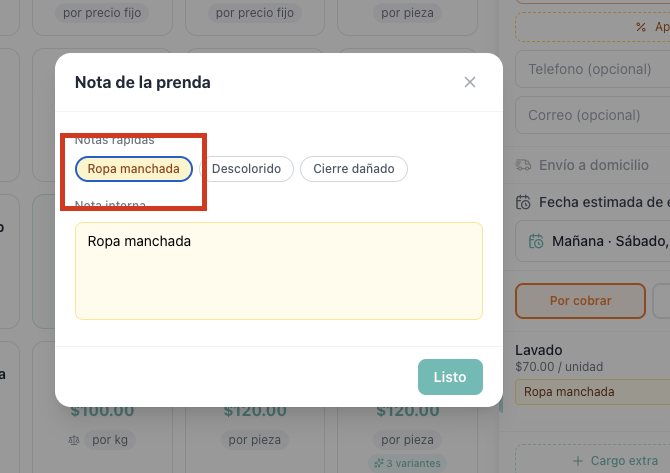
A popup opens with your quick notes on top and a free-text field below. Tap a chip to add it; tap it again to remove it. You can also type anything extra in the text box.
Tap Listo. The note shows as a small summary in the order panel — tap it anytime to edit.
Add a note to a single garment
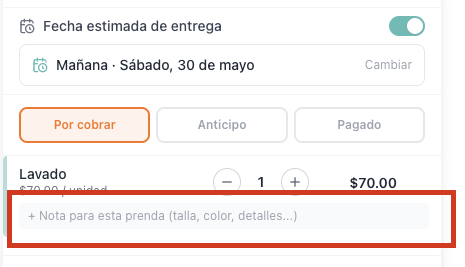
Each item in the cart has its own note ("+ Nota para esta prenda"). With quick notes enabled, tapping it opens the same popup — but the chips you tap are saved on that specific garment, not the whole order.
Frequently asked questions
Where do the notes appear? Order notes are saved with the order and shown in its detail; garment notes are attached to each line item.
Can each business have its own list? Yes. The list is per business — edit it anytime in Settings; changes apply to new sales immediately.
Do I have to use the chips? No. The text field is always there if you prefer to type, and you can mix both.