
If your renewal charge could not be processed — for example, your bank declined the card — your subscription gets a pending payment. Don't worry: you keep your access while you sort it out, and you can pay it or update your card in under a minute from Payment method & invoices.
Open Payment method & invoices
Go to Subscription from your business menu.
Under Manage your subscription, tap Manage next to Payment method & invoices.
Find the pending payment
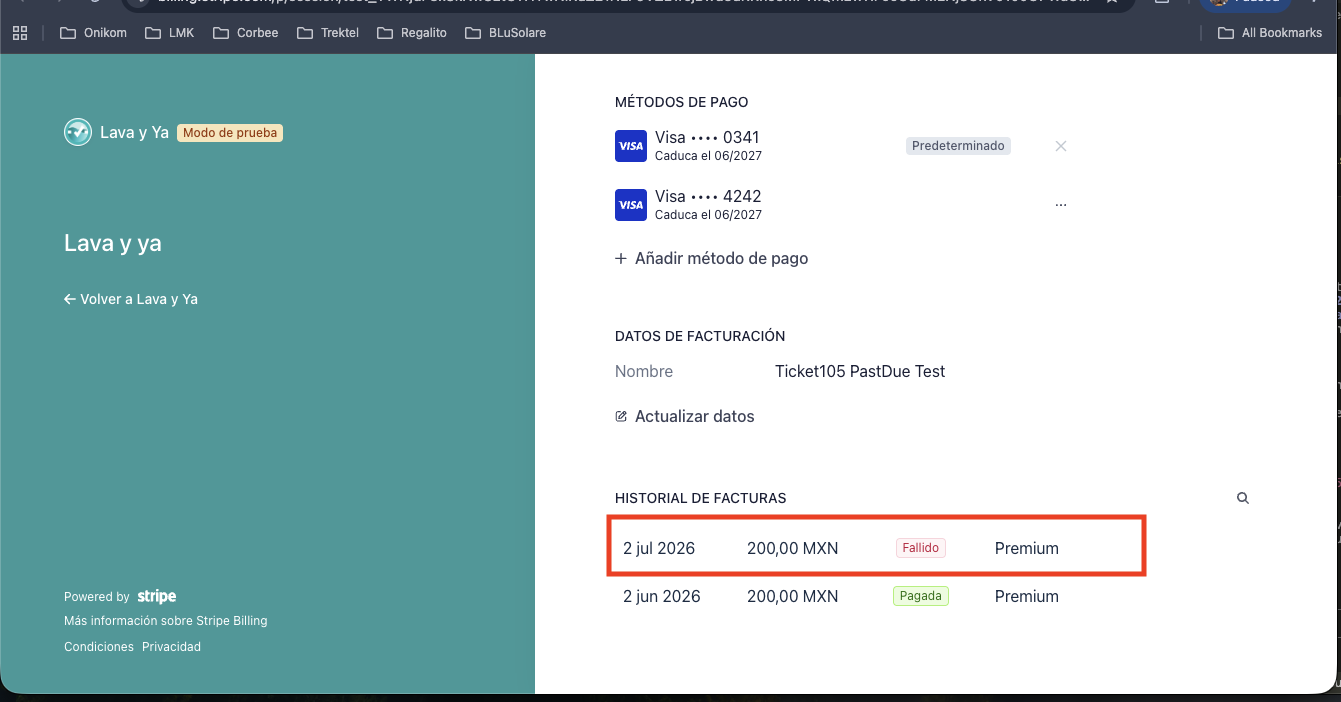
In Invoice history you'll see your charges. A charge marked Failed is the pending payment you need to resolve. Charges marked Paid are already covered.
Pay it — two ways
Update or add your card. Under Payment methods, tap Add payment method and enter a valid card (or edit the current one). When you save it, the pending charge is retried automatically.
Pay the invoice directly. Tap the invoice marked Failed and follow the steps to pay it with your card.
Done
Once the payment goes through, your subscription is back in good standing and you keep all your Premium features. There's nothing else to do.