
Work stages let your team mark where each item is inside the workshop — for example Wash → Drying → Ironing. Each item of an order can be in a different stage, and you can filter your orders by stage to see what is waiting at each step.
Set up your stages
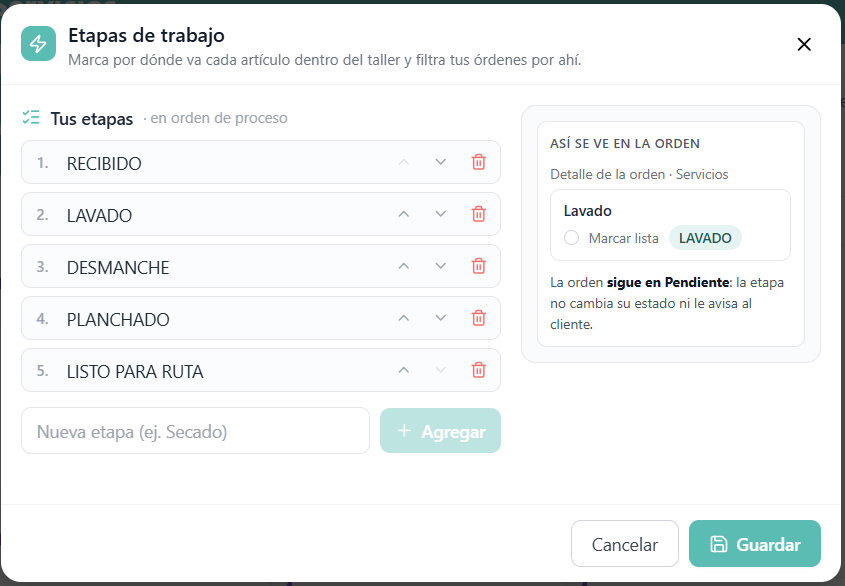
Go to Productos and tap the Etapas de trabajo button.
Type the name of a stage (for example "Secado") and tap Agregar. Add them in the order of your process: the first one is the first step.
Use the arrows to move a stage up or down, and the trash can to remove it. You can have up to 10 stages of up to 30 characters. When you are done, tap Guardar.
Mark where each item is
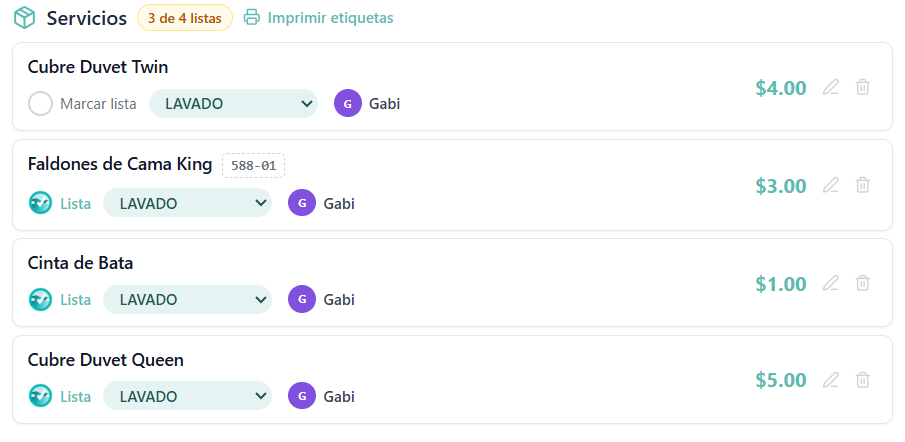
Open an order. In the list of items, each one has a stage selector.
Choose the stage the item is in. It saves on its own, without a save button.
To clear it, choose Sin etapa.
You can change stages while the order is Pending and also once it is Done. They are locked only when the order is Delivered or Canceled.
If you print labels with a QR for each garment, your team can also change the stage by scanning the garment QR while logged in to your business.
Your team, from their phone: Mi trabajo
Each person on your team with their own user sees, in Órdenes → Mi trabajo, the items assigned to them, and changes the stage right there without opening the order. For an item to show up, assign it to them in the order detail (the selector next to the stage).
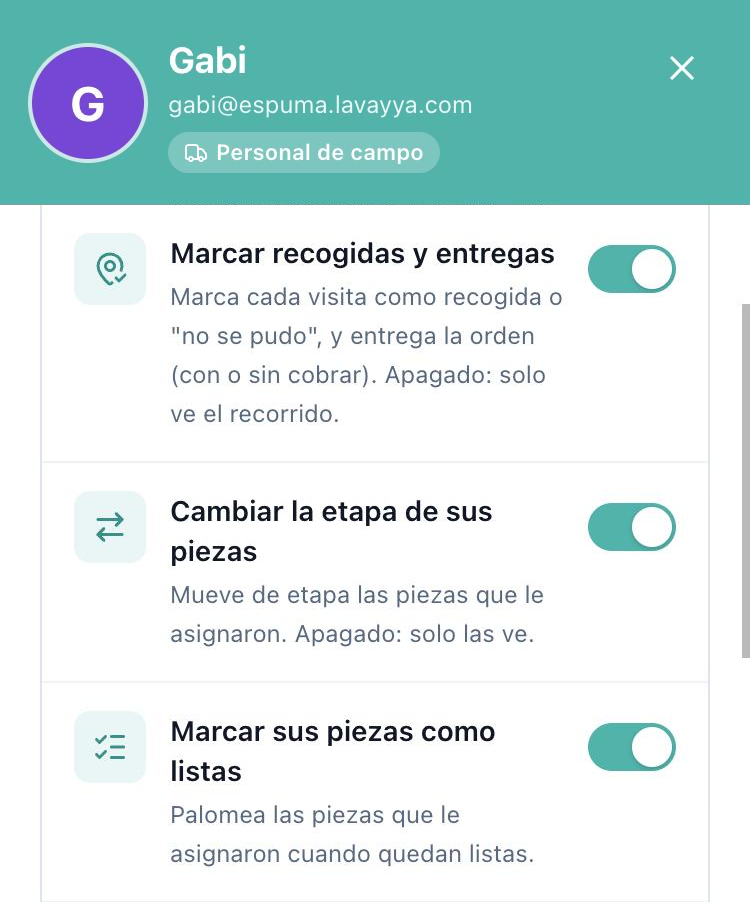
Employees, supervisors and admins can change the stage from day one. Field staff only if you allow it: in Equipo, open the person and turn on Cambiar la etapa de sus piezas. Read-only users see the stage but cannot change it.
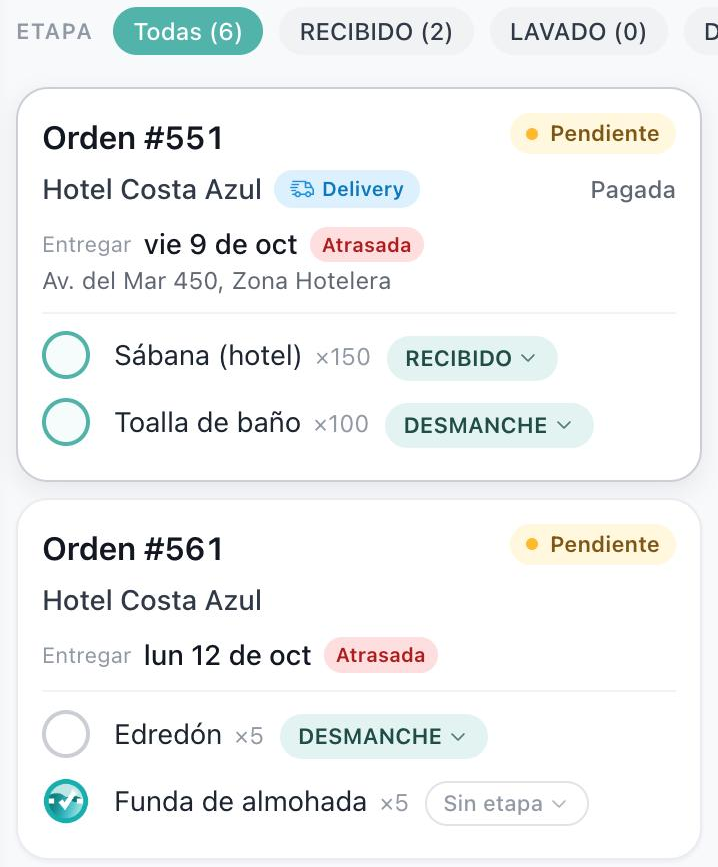
Filter your orders by stage
In Órdenes, above the list, a row of pills shows each stage with how many orders have items in it. Tap a stage to see only those orders, or Sin etapa to find the ones nobody has started. Each order card also shows the stages it is in.
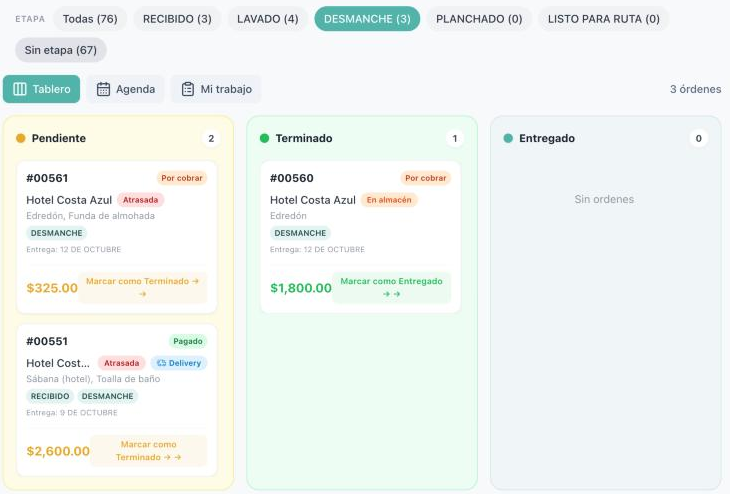
The same filter is in Reportes → Órdenes, and the Excel and PDF reports include the stage of each order.
Stage vs. order status
Status (Pending, Done, Delivered) is what your customer sees and what triggers the WhatsApp notices. Stage is internal: it tells your team where each item is. When the whole order is ready, you still mark it as Done as usual.