
Contar piezas groups two options for businesses that receive volume: hotels, restaurants, gyms or companies that drop off bags of linens and uniforms. Both are off by default: if you count garments at the counter and charge right away, you do not need them.
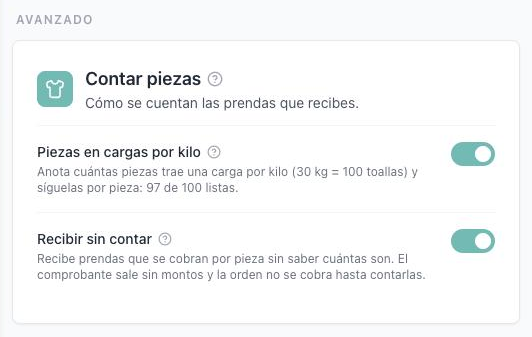
Go to Configuración. At the bottom, in the Avanzado group, find the Contar piezas card.
Turn on Recibir sin contar, Piezas en cargas por kilo, or both.
Tap Guardar at the top of the screen.
Recibir sin contar
For services you charge per piece when you do not know how many garments came in yet: the customer leaves a bag, you count it later in the workshop, and only then is the price known.
Take in the order
In the POS, add the per-piece service (for example Valet).
On that line, tap the Por contar chip. Instead of the quantity and the amount, the line now says "Por contar", and the total leaves it out.
Create the order as Por cobrar. You can take an Anticipo, but Pagado is disabled: there is nothing to charge yet.
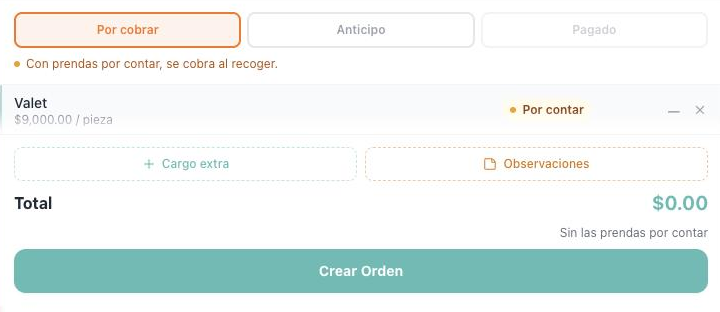
The chip only shows on per-piece services. It does not show on per-kilo, m², linear meter, direct sale products or extra charges.
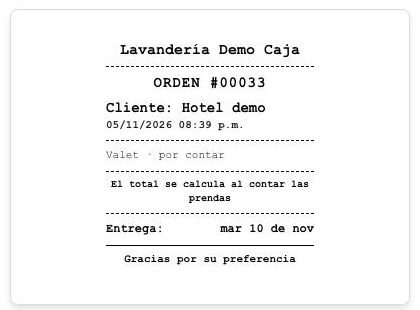
The ticket and the email your customer receives carry no amounts: they list the services and say that the total is calculated when the garments are counted.
Count the garments
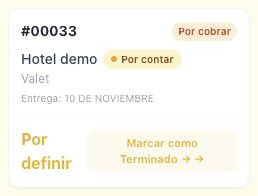
On the board and in the lists, the order shows the Por contar badge and its total says Por definir.
Open the order. On the line, tap Contar.
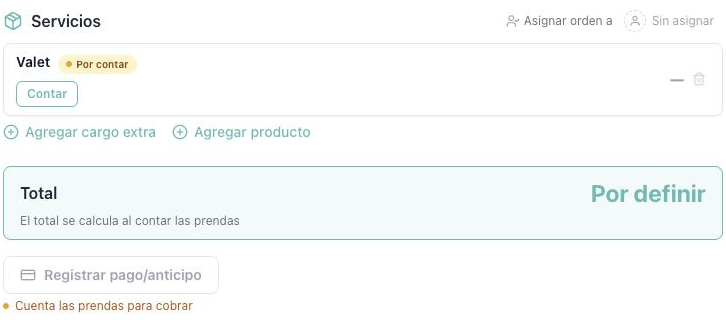
Type how many garments came in and tap Guardar. The line and the total are recalculated with the service price.

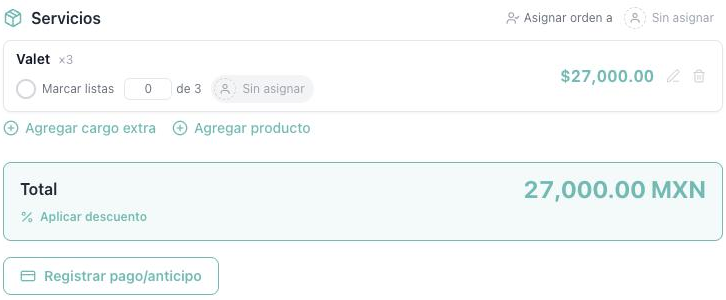
Anyone on your team can count, including employees. Changing anything else on the line is still for owners and admins.
How it affects your finances
Income is recorded on the day the money comes in, as with any other order. An anticipo taken at drop-off goes into that day's cash and cash report. Counting does not move money: it only sets the total. The rest goes in on the day you charge it, after counting, with the payment method you use.
While it is not counted, the order totals $0: it does not add to your sales or to what you are owed. When you count it, it takes its real total in the order reports.
Piezas en cargas por kilo
For businesses that charge by weight but need to track pieces: 30 kg of towels are 100 towels, and at delivery you want to know none is missing. The price is still per kilo; the pieces are only for tracking.
In the POS, tap a per-kilo service. Under the weight, a Piezas (opcional) field appears. Type how many came in, or leave it empty to count them later.
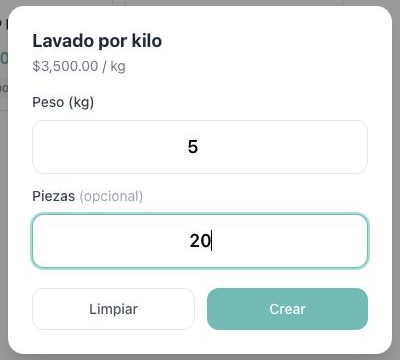
In the order detail, the line is tracked in pieces: type how many are ready and you will see "Faltan 3" until the load is complete. Tap "de 20 pzas" to fix the total.
If you did not count the pieces at drop-off, the line shows Contar piezas: type them there and tracking starts.
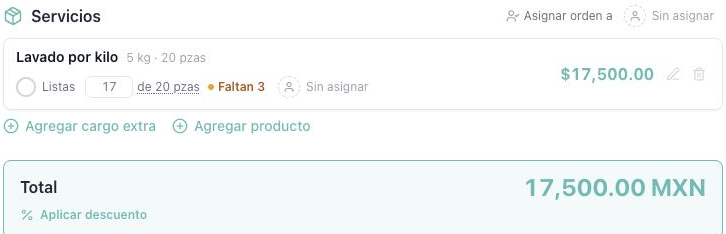
With this option on, per-piece lines with several garments are also tracked partially ("97 de 100 listas") instead of a single check.
When to turn it on
Recibir sin contar makes sense if you receive bags of linens or uniforms from hotels, restaurants or companies and count them in the workshop; if at busy hours you prefer to take in the bag and count later; or if today you use a $0 product, or a 100% discount, just to give a ticket. If it is a hotel that pays you by period, also see Lava y Ya for hotels and companies.
Piezas en cargas por kilo makes sense if you charge by weight but your customers ask for their pieces back (towels, sheets, tablecloths), and you want to know at delivery whether something is missing, before the customer finds out.
You do not need them if you count garments at the counter and charge right away, or if you only work per kilo without counting pieces.