If you wash for hotels, vacation rentals, restaurants or companies, Lava y Ya has tools for the way you work. They are all optional: turn on only the ones you need, per customer or per person.
Which tool to use
| If you need to… | Use | Where to turn it on |
|---|---|---|
| Charge each order when you deliver it | Billing Al entregar | Clientes → the company → Cobro |
| Charge every week, fortnight or month | Billing Por periodo and the account cut | Clientes → the company → Cobro |
| Keep amounts off the customer's ticket | Ticket Sin precios | Clientes → the company → Ticket |
| Keep prices hidden from an employee | Ver precios y montos off | Equipo → the person |
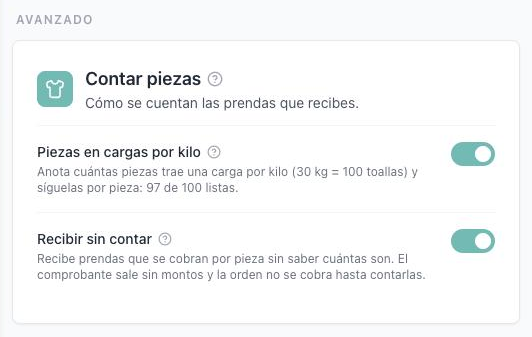
| Take in bags and count them later | Recibir sin contar | Configuración → Avanzado → Contar piezas |
| Know which pieces are missing ("47 of 50") | Piezas en cargas por kilo | Configuración → Avanzado → Contar piezas |
| Pick up and deliver at the hotel | A driver | Equipo → Agregar empleado |
1. Add the hotel
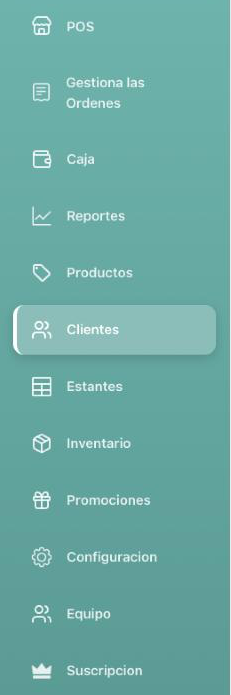
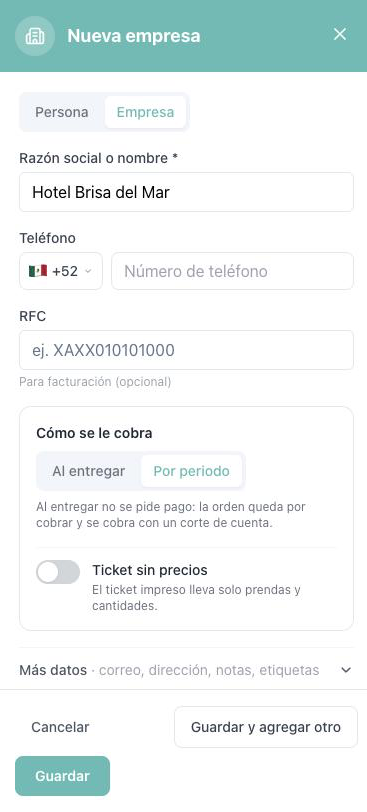
Clientes → Agregar → Empresa. Type the name and choose how it is charged and whether its ticket has prices.
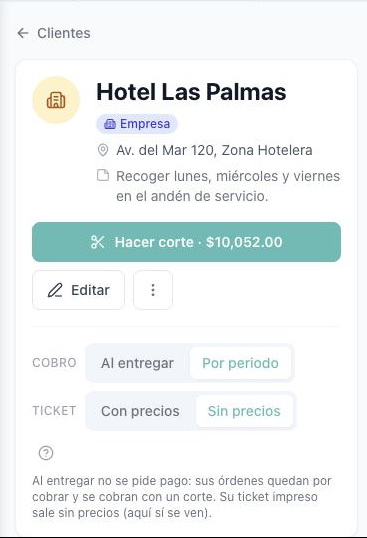
To change it later, open the hotel: Cobro and Ticket save as soon as you tap, and the ? explains each option.
2. How to bill it
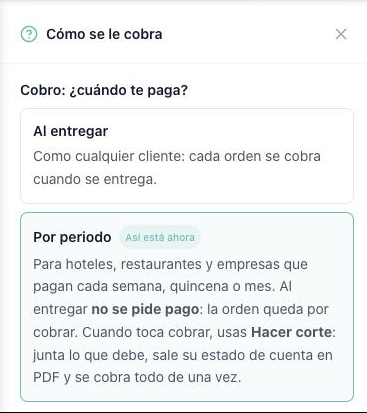
Al entregar: each order is charged when it is delivered, like any customer.
Por periodo: no payment is requested when delivering. The orders stay por cobrar and you charge them together with an account cut (step 5).
3. With or without prices
They are two separate things:
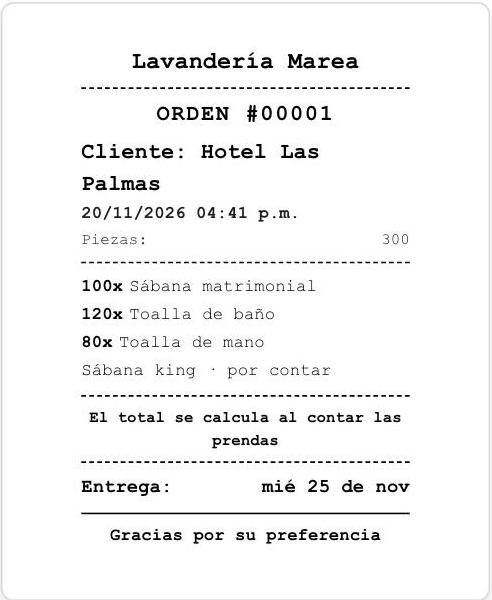
What the hotel sees on paper → Ticket Sin precios on the customer. The printed ticket lists garments and quantities.
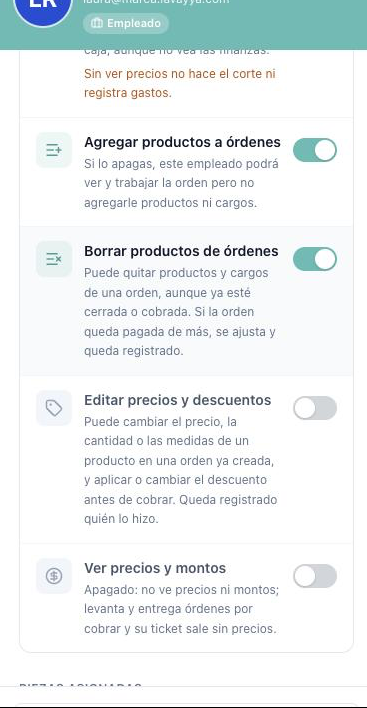
What your employee sees on screen → Ver precios y montos off in Equipo. They take in, deliver and print without seeing amounts, and the receipt they send by WhatsApp has no prices. Step by step: Employees who do not see prices.
4. Take in and deliver
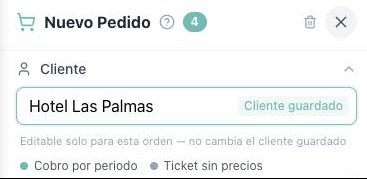
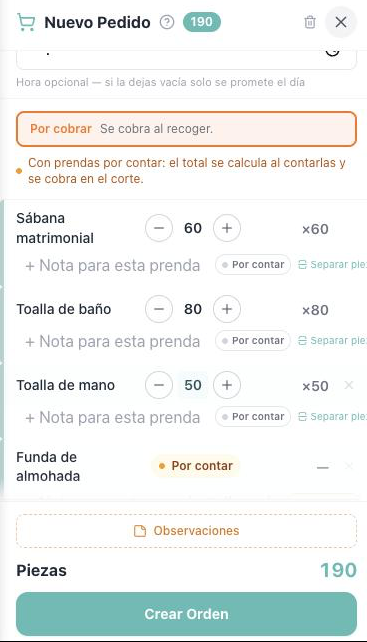
In the POS, choose the hotel: you will see its billing and ticket labels. Type the quantities or mark Por contar.
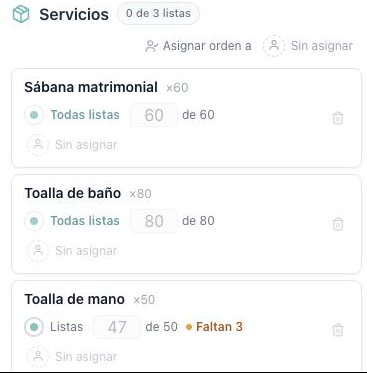
In the order, mark how many pieces are ready. If some are missing, the line says so.
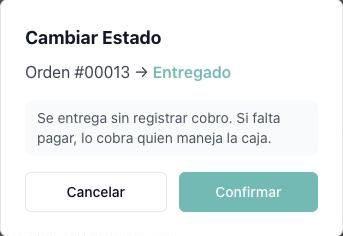
Mark it Entregado. With billing by period, no payment screen opens.
More detail in Contar piezas and, if a driver delivers, in Repartidores y personal de campo.
5. Bill the period: account cut
Open the hotel and tap Hacer corte · $X to group all its orders por cobrar. To bill only some, check them in Órdenes del periodo.
Check the summary, add a note if you want and tap Hacer corte.
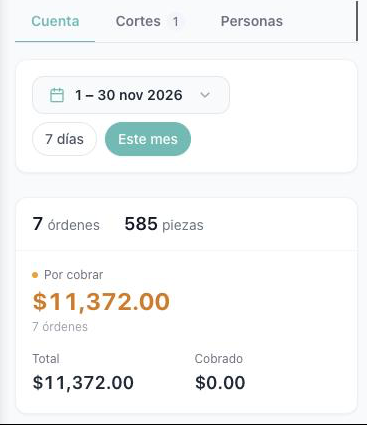
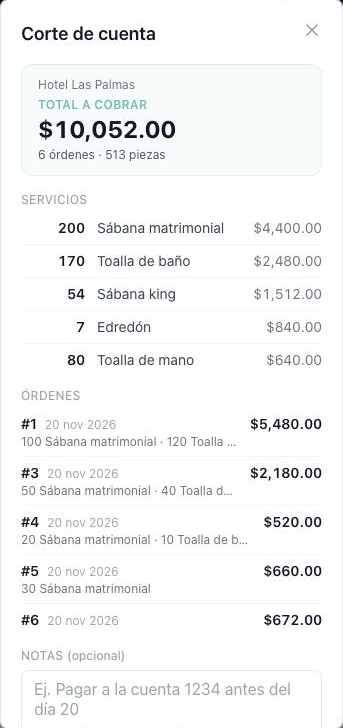
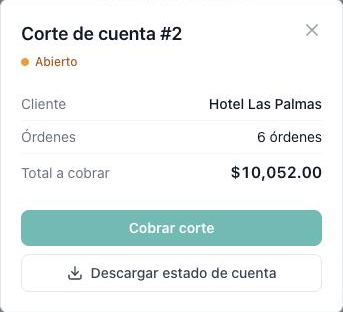
Tap Descargar estado de cuenta and send it to the hotel.
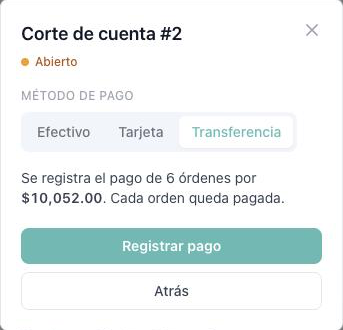
When it pays: Cobrar corte → choose the method → Registrar pago. Each order is marked as paid.