
Each person on your team has a role, and on top of the role you turn permissions on or off one by one. The role sets the starting point; the permissions fit it to the way your business works.
Where to change them
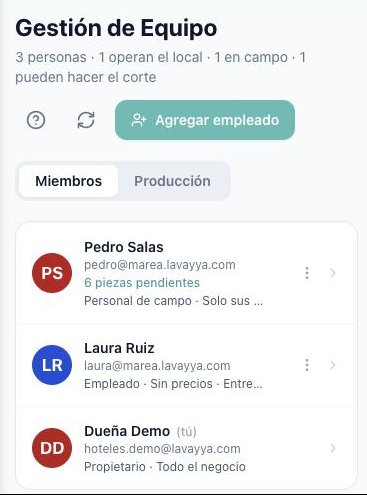
Go to Equipo and tap the person.
Choose the role and turn on or off what you need in Qué puede hacer.
Tap Guardar cambios. The button appears when you change something.
When you add someone with Agregar empleado, the ¿Qué puede hacer? step has almost the same list. Editar precios y descuentos and Eliminar órdenes are given later, from the person's panel.
What each role includes
| Role | Can | Cannot |
|---|---|---|
| Propietario | Everything: subscription, team and permissions. | — |
| Administrador | Orders, products and catalog, financial reports, change prices and discounts, add supervisors and employees. | Manage the subscription or add another administrator. Remove products from orders or delete orders, unless given the permission. |
| Supervisor | Create, edit, finish and deliver orders; add products to orders; edit the catalog. | See financial reports or invite. Change prices or discounts and remove products from orders, unless given the permission. Delete orders. |
| Empleado | Create and edit orders; look up the catalog. | Edit products, see financial reports or invite. Change prices or discounts and remove products from orders, unless given the permission. Delete orders. |
| Personal de campo | See only the pieces you assign them, with the data they need to go to the address. | Reports and cash. The rest depends on their own switches: see Repartidores y personal de campo. |
| Solo lectura | See reports, dashboards and orders. | Operate or edit anything. It has no permissions to turn on. |
What each permission unlocks
In the order they appear in Qué puede hacer:
| Permission | What it does | Applies to | Starts |
|---|---|---|---|
| Entregar órdenes | Moves the order to Entregado. Off: they only finish it and someone else registers the delivery. | Administrator, supervisor, employee | On |
| Hacer el corte de caja | Counts the cash and makes the day's closing from Hoy. If the business closes by shift, at the end of their shift in the POS. The owner and administrators always can. | Supervisor, employee | On when adding someone |
| Registrar gastos | Records what is paid with cash from the register, even without seeing finances. | Supervisor, employee | Off |
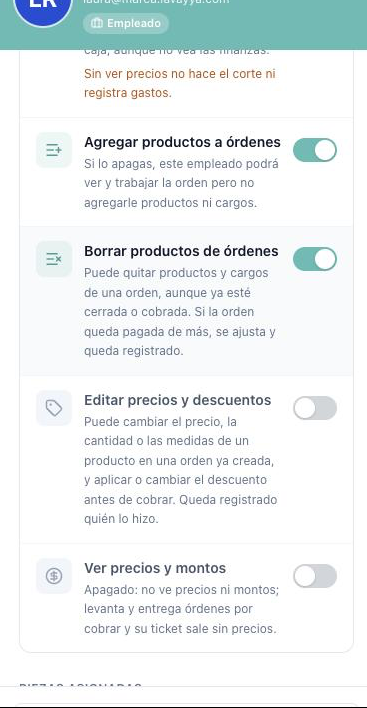
| Agregar productos a órdenes | Adds products or charges to an existing order. A supervisor always can. | Employee | On |
| Borrar productos de órdenes | Removes products and charges, even from a closed or paid order. If it ends up overpaid, it is adjusted and recorded. Only the owner gives it. | Administrator, supervisor, employee | On if the owner adds the person; otherwise off |
| Editar precios y descuentos | Changes price, quantity or measurements of a product in an existing order, and the discount before charging. It records who did it. Only the owner gives it. | Supervisor, employee | Off |
| Ver precios y montos | Off: they see no prices or amounts, take in and deliver orders por cobrar, and their ticket and receipt go out without prices. See Employees who do not see prices. | Supervisor, employee | On |
| Eliminar órdenes | Deletes a whole order. It can be reviewed later and its inventory comes back. Only the owner gives it. | Administrator | Off |
Also in each person's panel
PIN para abrir turno: 4 to 6 digits. When opening the shift at the counter, the person chooses their name and types the PIN, and everything they do in that shift is under their name. It saves right away. Not for Solo lectura.
Piezas asignadas: what they have pending, assigned from each order.
From the ⋮ menu in the list you can change their password, suspend them or remove them from the team.