The Personal de campo (field staff) role is for whoever goes to your customer's home: the driver who picks up and delivers, or the technician who does the service on site. From their phone they see only the orders you assign them, with the address and the schedule, and they mark each pickup, delivery and payment. You see who did what and when.
1. Add your driver
Go to Equipo and tap Agregar empleado. Type their name and a password (or tap Sugerir una). If they do not have their own email, we create a login email for them, such as name@yourbusiness.lavayya.com.
Under ¿Qué rol tiene?, choose Personal de campo.
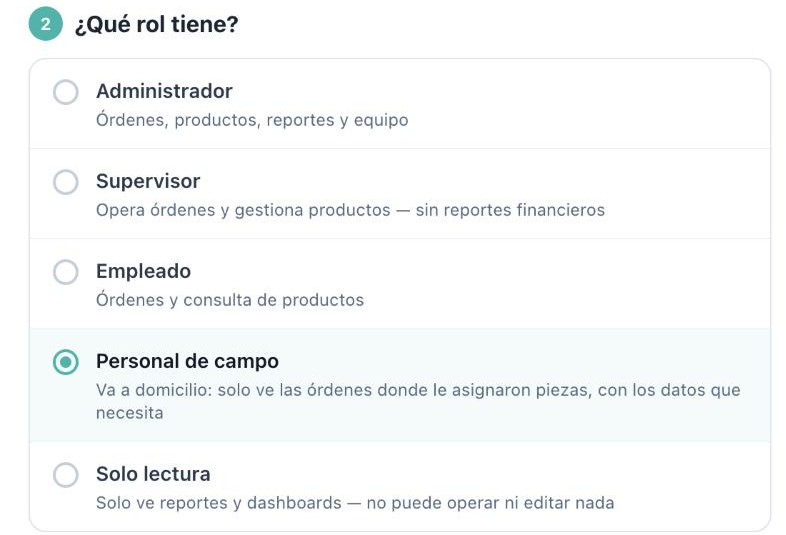
Under ¿Qué puede hacer?, choose what this person can do. Three switches are on from the start: Cobrar, Marcar recogidas y entregas and Terminar órdenes.
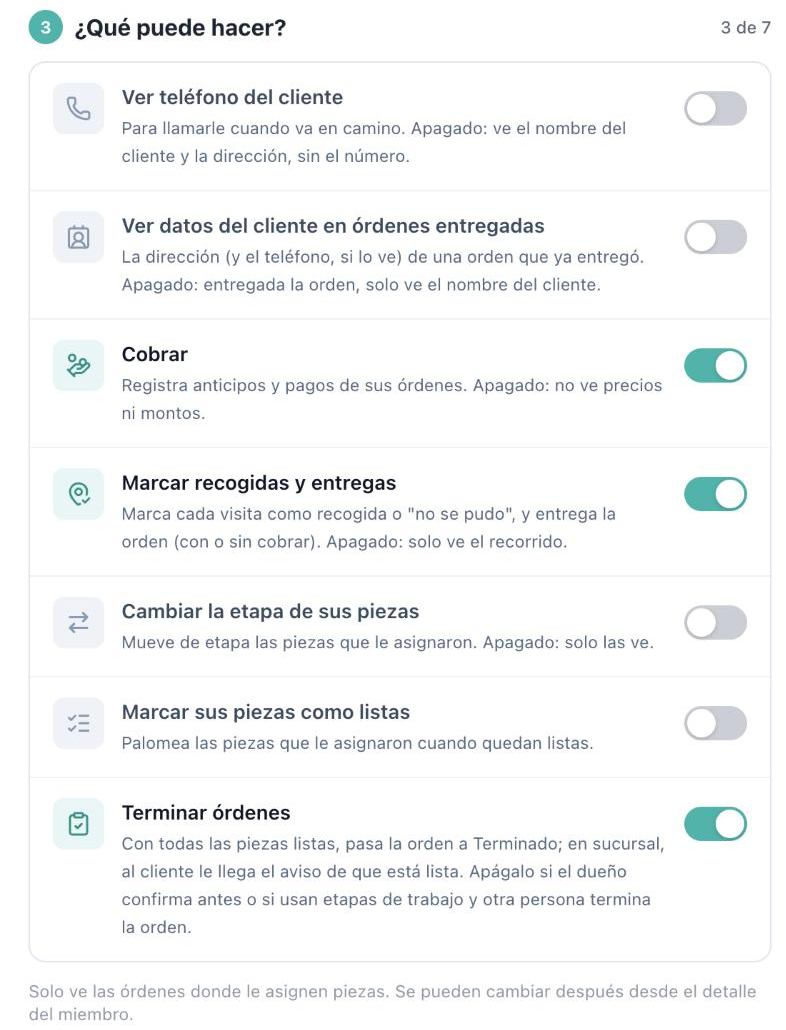
Ver teléfono del cliente: to call when on the way. Off, they see the name and address but not the number. Ver datos del cliente en órdenes entregadas: off, once the order is delivered they only see the customer's name. Cobrar: records advances and payments; off, they do not see prices or amounts. Marcar recogidas y entregas: off, they only see the route. Cambiar la etapa de sus piezas and Marcar sus piezas como listas: for technicians who do the work (see Work stages). Terminar órdenes: with every item ready, they move the order to Done. Levantar órdenes: off by default; on, they create orders for registered customers (see below).
Tap Crear empleado and send them the login email and password. They sign in with them in the Lava y Ya app or on the web.
2. Assign them orders
Open a home delivery order. In the A domicilio card, under Quién va al domicilio, tap Sin asignar.
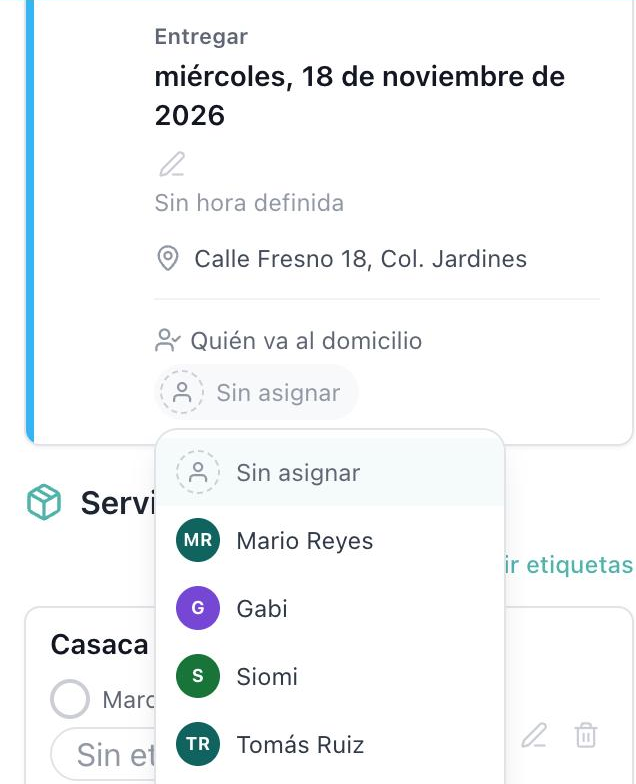
Choose the person. The whole order is assigned to them, items included, and it shows up in their Mi trabajo right away.
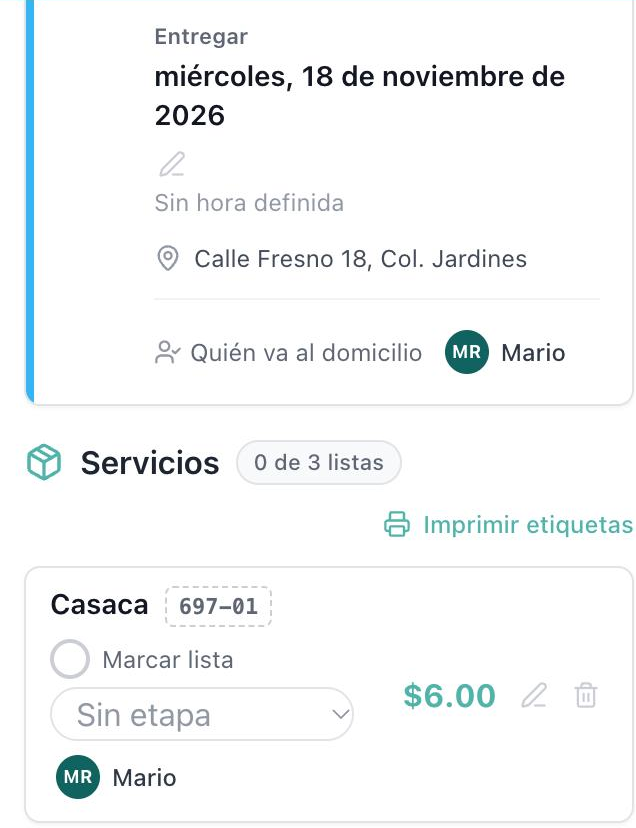
For an order without home delivery, the same selector is at the top of Servicios, as Asignar orden a. You can also assign a single item from its own selector under Servicios.
3. What your driver sees: Mi trabajo
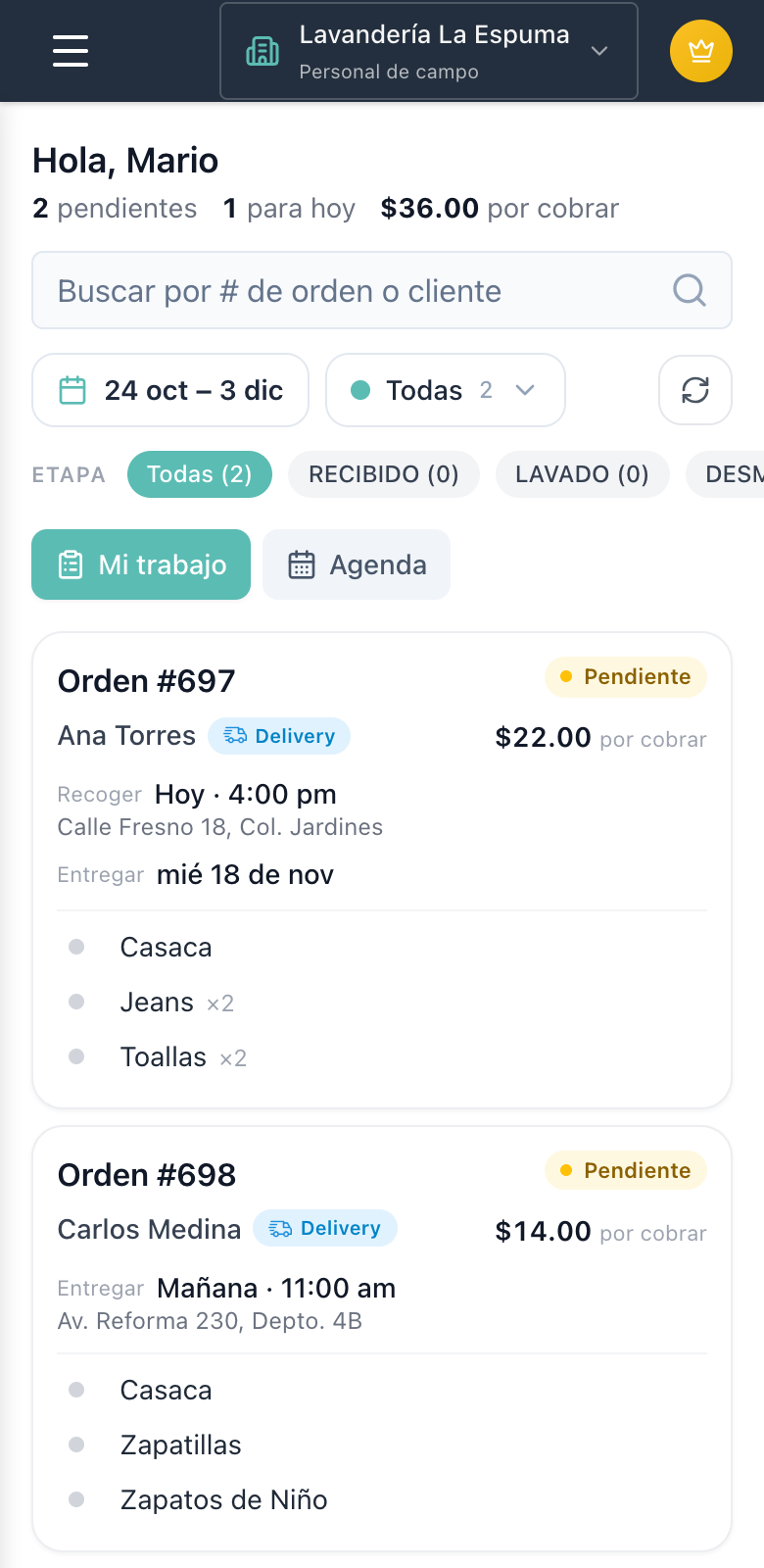
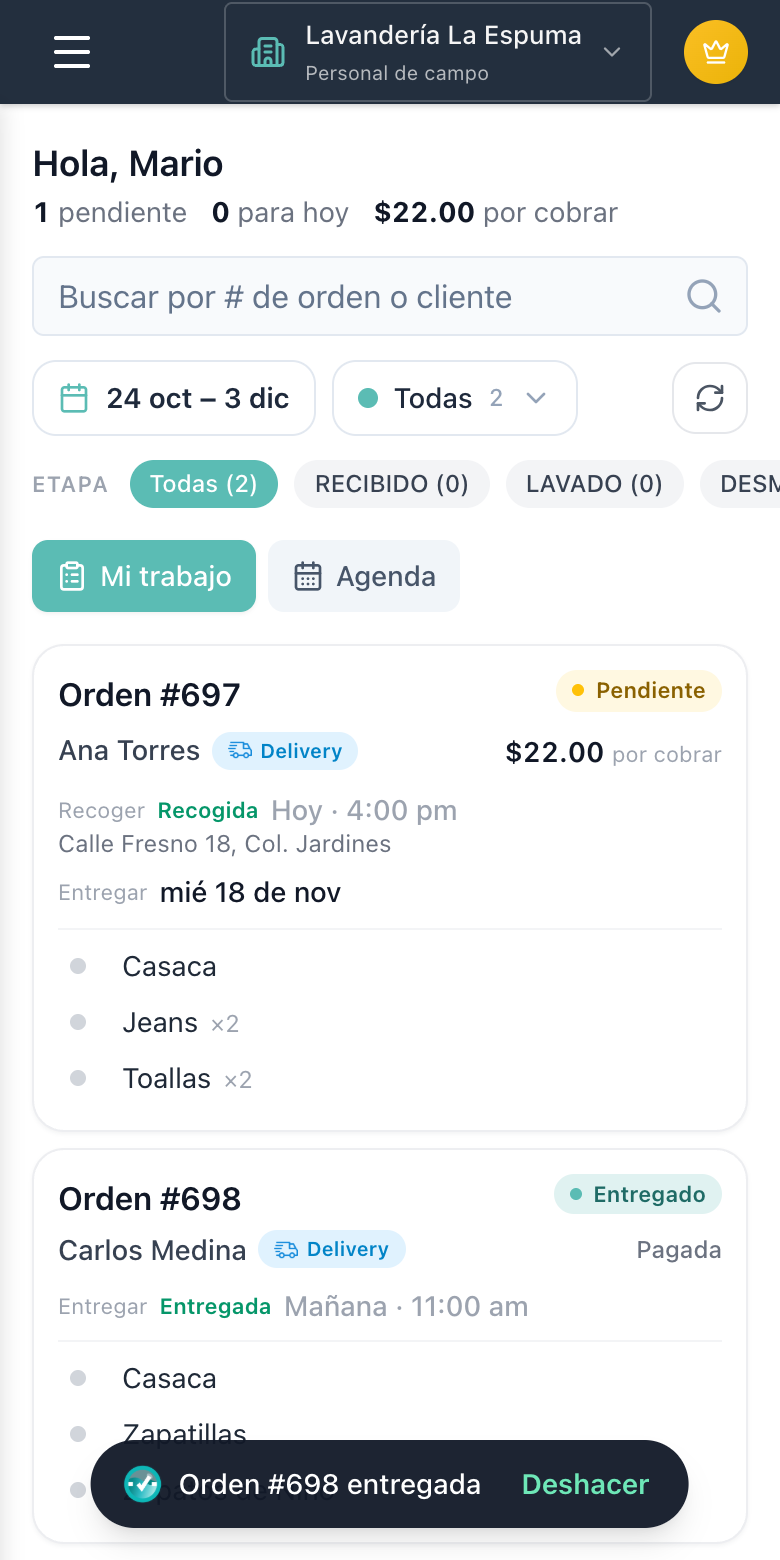
When they sign in, Mi trabajo is their only section. At the top they see how many orders they have pending, how many are for today and how much is left to collect. Each card shows the order, the customer, when to pick up and deliver, the address and the items. They can search, and filter by dates, status and stage.
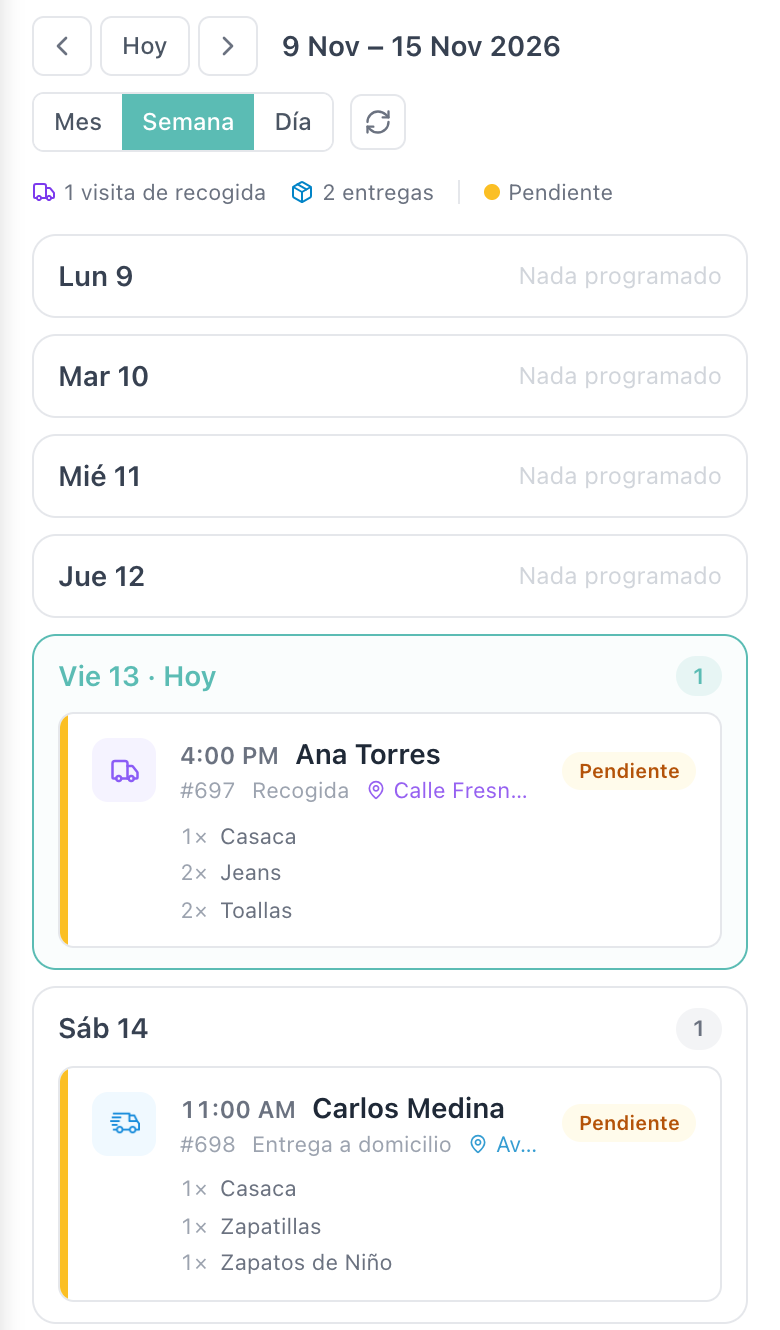
With Agenda they see their week (or the day or the month) with each pickup and delivery at its time. Only their orders appear, never the whole business schedule.
With Levantar orden they create an order on the spot for a customer that is already registered (they cannot add new customers): they search the customer by name, write how many pieces of each item, and the home delivery comes filled with the customer's address. The order is always por cobrar, without prices, and shows up in their Mi trabajo. The button only appears if you turn on their Levantar órdenes switch in Equipo; it is off by default.
4. At the customer's home: pickup
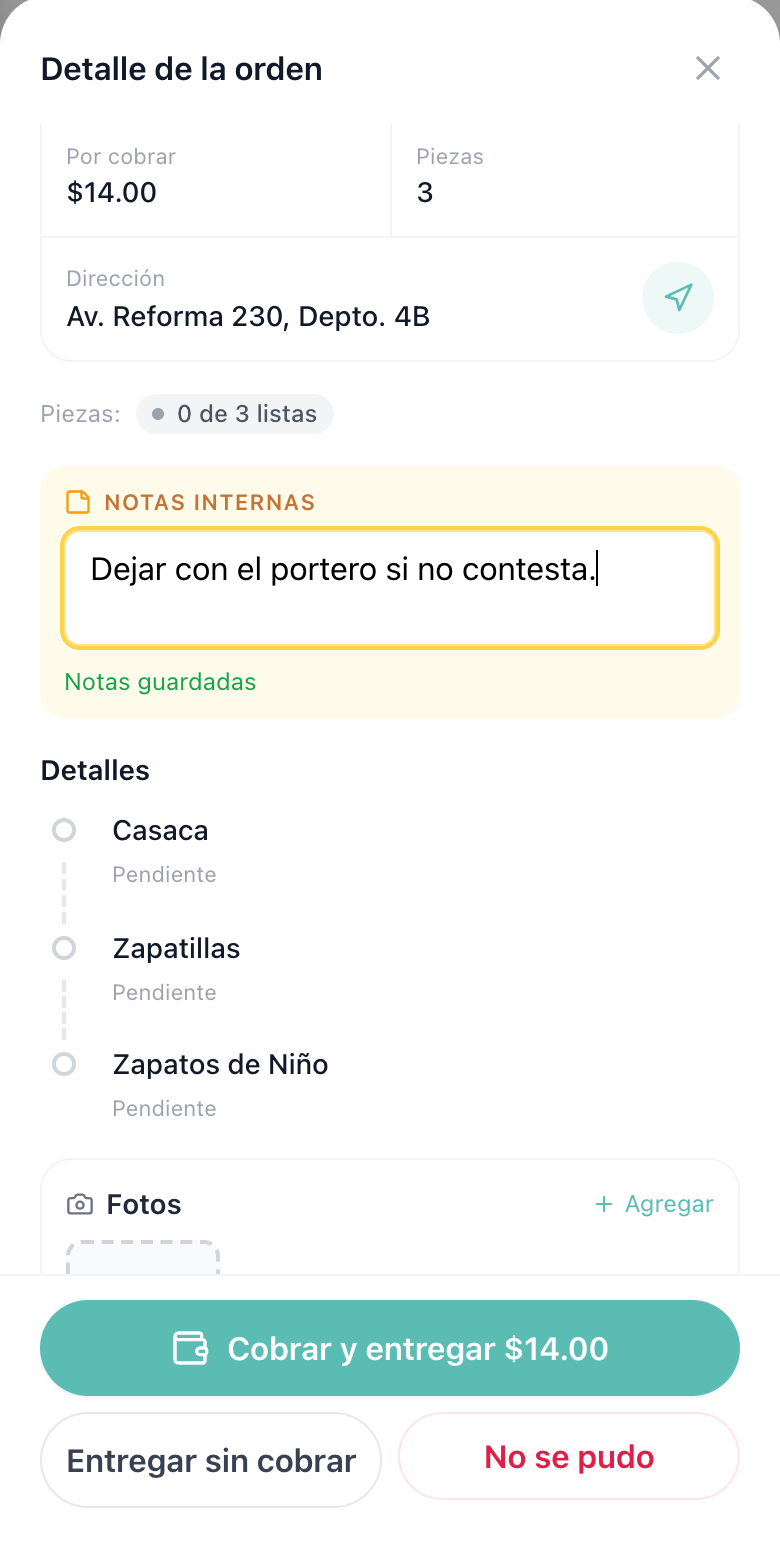
They tap the order. They see the route (pickup and delivery), how much is left to collect, the items and the address. The arrow next to the address opens it in the map app, and if they can see the phone, the call button dials the customer.
In Notas internas they write what your counter should know (for example "black gate, ring the top bell") and tap Guardar notas. In Fotos they add pictures of the garments as proof.
When they have the garments, they tap Recogida. If they did the work right there, Entregar ahora delivers the order in the same visit.
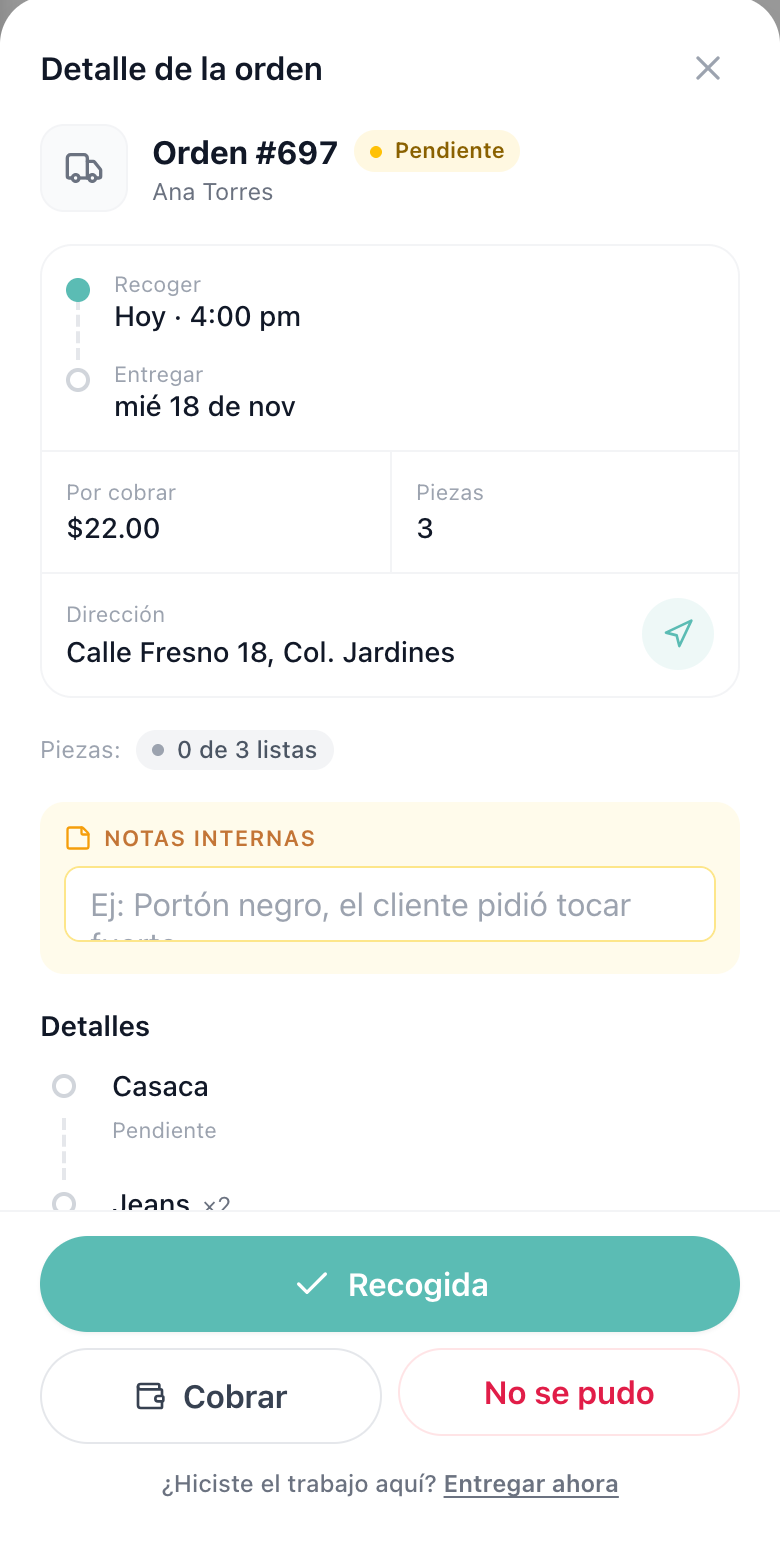
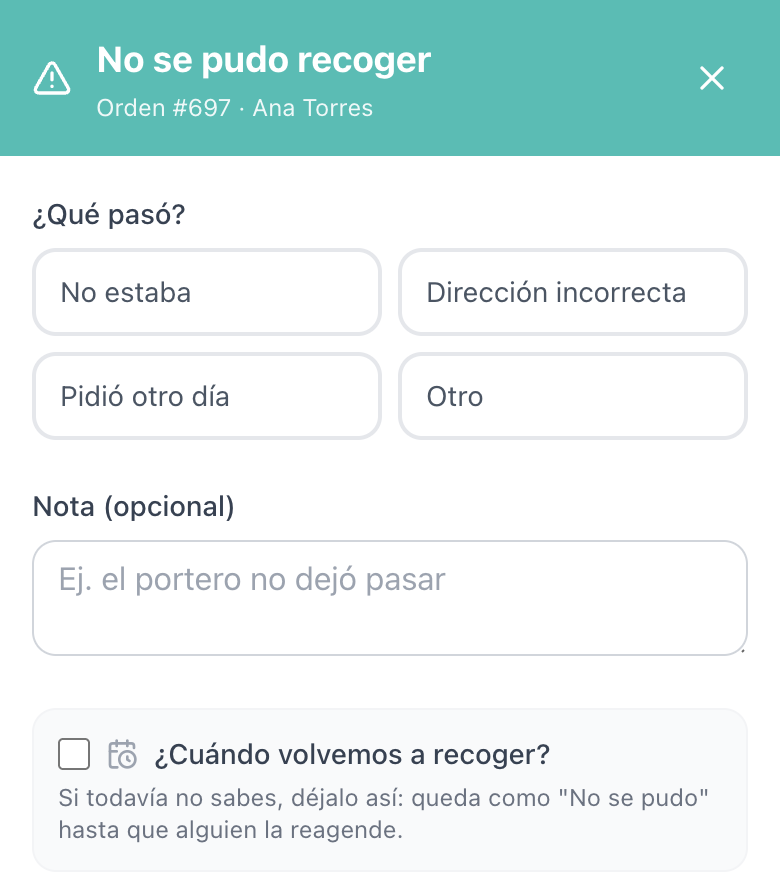
If they could not pick up, they tap No se pudo, choose what happened (No estaba, Dirección incorrecta, Pidió otro día or Otro), add a note and, if they know it, the new date. If not, the stop stays as "No se pudo" until someone reschedules it.
5. Deliver and collect
For the delivery, the order shows Cobrar y entregar with the balance, Entregar sin cobrar (the order stays with its balance pending) and No se pudo.
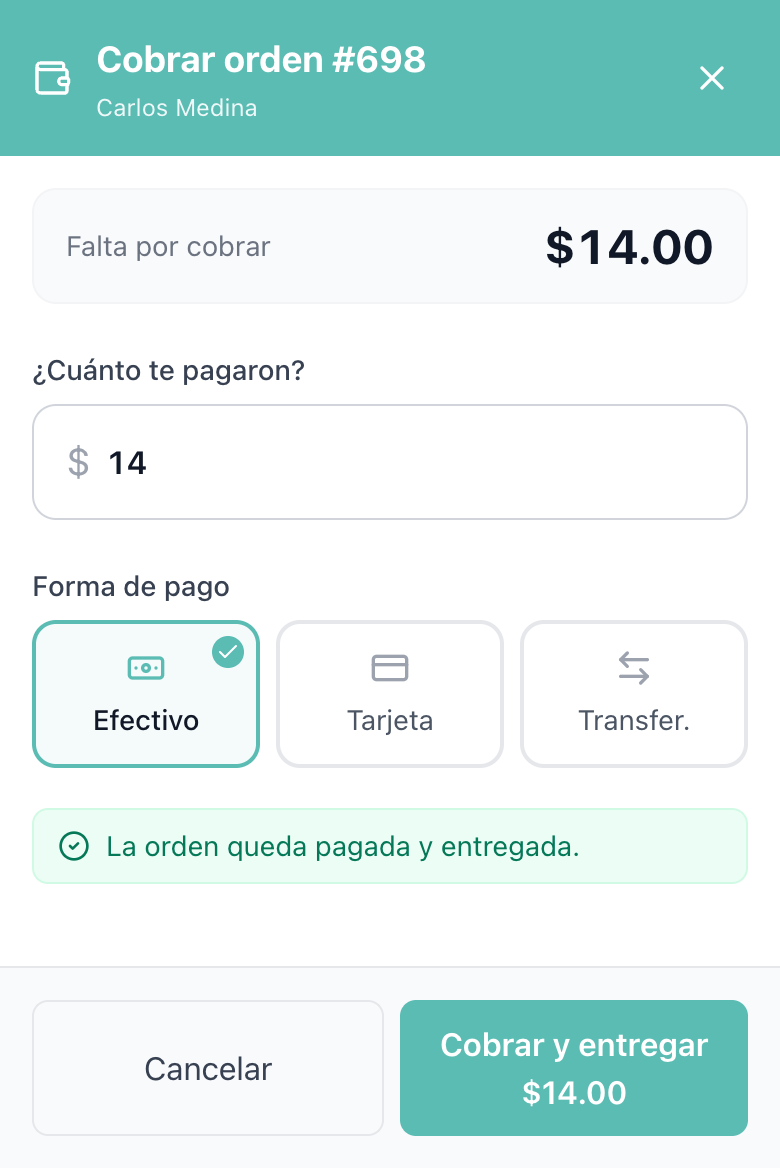
In Cobrar y entregar they type how much they were paid and choose Efectivo, Tarjeta or Transfer. The order is paid and delivered in a single step. From the order they can also tap Cobrar to record a payment without delivering yet.
What you see as the owner
In the order detail you see each stop marked with its time and who marked it, the notes and photos your driver added, and the payment with its method. A delivery that is marked as done does not notify your customer that the order is ready for pickup.